
Skip to content
  • Home
  • PluginsExpand
    • WP Recipe Maker
    • WP Ultimate Post Grid
    • Easy Affiliate Links
    • Easy Image Collage
    • All-Access Pass
  • FAQ & Support
  • About Us
  • Blog
  • Your Account
Bootstrapped Ventures Knowledge Base
  • Get the Plugin
  • DocumentationExpand
    • WP Recipe Maker
    • WP Ultimate Post Grid
    • Easy Affiliate Links
    • Visual Link Preview
    • Custom Related Posts
  • Open a Support Ticket
Bootstrapped Ventures Knowledge Base

Getting Started

4
  • Installing Easy Affiliate Links
  • Easy Affiliate Links 101
  • Using the Manage page
  • Activating your license key

FAQ

4
  • Easy Affiliate Links Changelog
  • Bulk editing links through a CSV file
  • Import from Pretty Links
  • Updating Easy Affiliate Links

Premium Features

5
  • Amazon Product API Links
  • Click Statistics and Charts
  • Conditional Links
  • Broken Links Checker
  • Pass along query parameters to destination URL

Account & Licensing

1
  • Account & Licensing
  • Pre-Sale Questions
    • 30 day money-back guarantee
    • Is this a one-time sale or a subscription?
    • Do you offer lifetime licenses?
    • Can I get a trial or demo version?
  • Your License
    • Logging in to your Bootstrapped Ventures account
    • Where can I download a copy of the plugin?
    • The difference between my subscription and my license key
    • Licensing for development or staging sites
    • I need a refund for my purchase
    • Doing an early plugin renewal

Debugging Plugin Issues

4
  • Debugging plugin problems
  • The downloaded plugin is not a zip archive
  • Flushing permalinks to fix 404 errors
  • Creating a Temporary Login
View Categories
  • Home
  • Documentation
  • Easy Affiliate Links
  • Getting Started

Using the Manage page

The Affiliate Links > Manage page is the place find and manage all the affiliate links you’re using on your website.

Showing specific fields

Click on the columns at the top to pick the specific affiliate link fields to show in the table.

The table will automatically update to show the columns you’ve selected.

Sorting & filtering your affiliate links

To sort, click on the header you want to sort by. Click again to change from ascending to descending order. There will be a blue indicator showing to sort you’ve applied.

In this example we’ve sorted by number of clicks in descending order:

To filter, use the input field you see below that header. For some this will be a free text field, for others a dropdown. Just above the table you’ll see the number of links that are getting filtered. Here are just a few examples of filters that are possible:
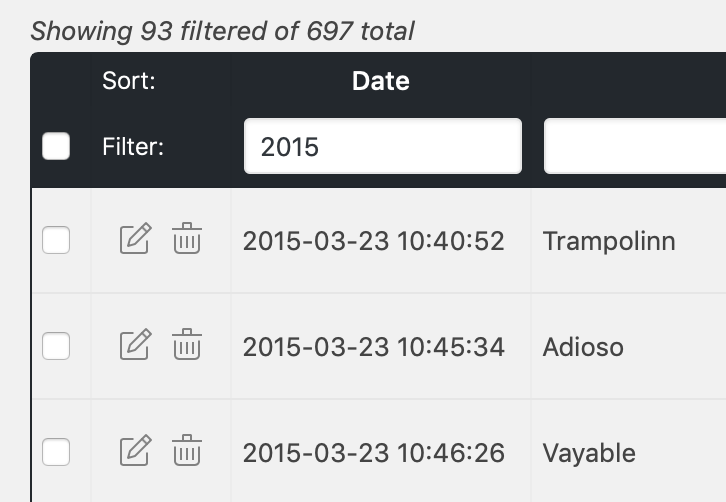
Combine filters to find exactly what you’re looking for!

Bulk edit affiliate links

Enable the “Bulk Edit” column to have the checkboxes show up as the very first column and a new button in the top right of the screen.

Click on this new Bulk Edit x Links button to show the different actions you have available for bulk editing:

Confirm with the button in the bottom right to apply this action to all selected links!

Updated on November 29, 2024
Easy Affiliate Links 101Activating your license key
Table of Contents
  • Showing specific fields
  • Sorting & filtering your affiliate links
  • Bulk edit affiliate links

© 2026 Bootstrapped Ventures · BE0634.767.406
Privacy Policy

  • Bootstrapped Ventures
  • Plugins
    • WP Recipe Maker
      • Demo
      • Documentation
      • Get the Plugin
    • WP Ultimate Post Grid
    • Easy Affiliate Links
    • Easy Image Collage
    • All-Access Pass
  • FAQ & Support
    • Knowledge Base
    • Documentation
  • About Us
  • Blog
  • Your Account