
Pin Custom Image
You get the “Pin Recipe” button in the free version as well, using the recipe image by default.
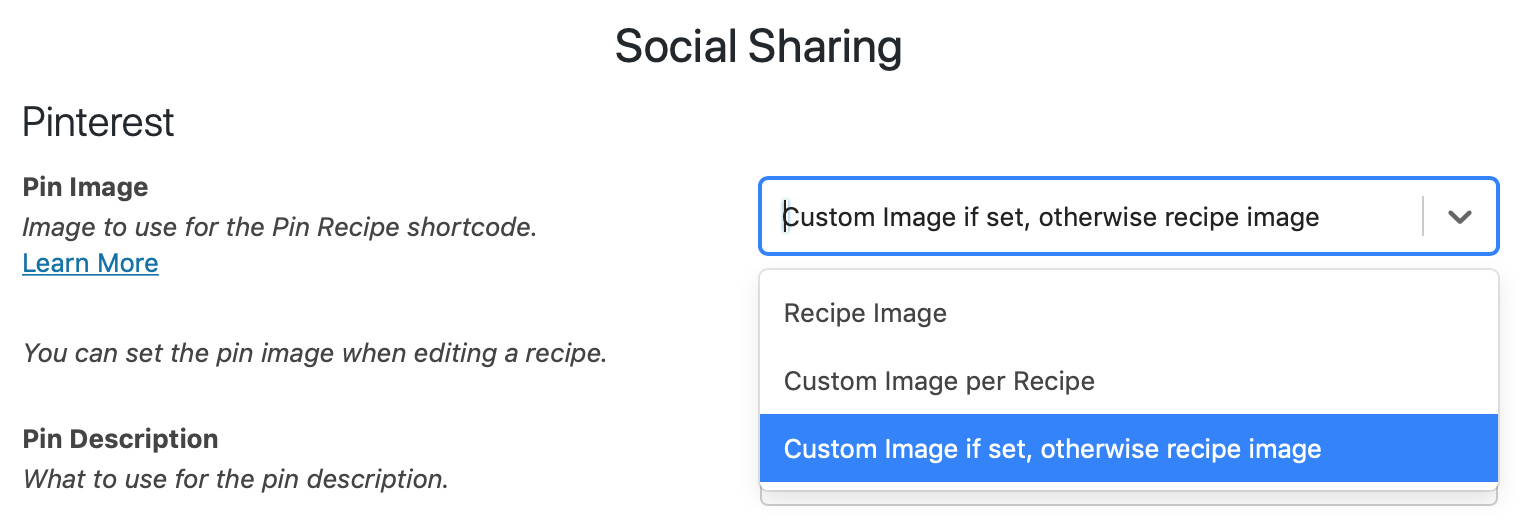
With the Premium plugin you also have the ability to set a custom pin image to be used instead, allowing you to optimize for Pinterest.
Using a Custom Pin Image
Section titled “Using a Custom Pin Image”Make sure to enable this option on the WP Recipe Maker > Settings > Social Sharing page first.
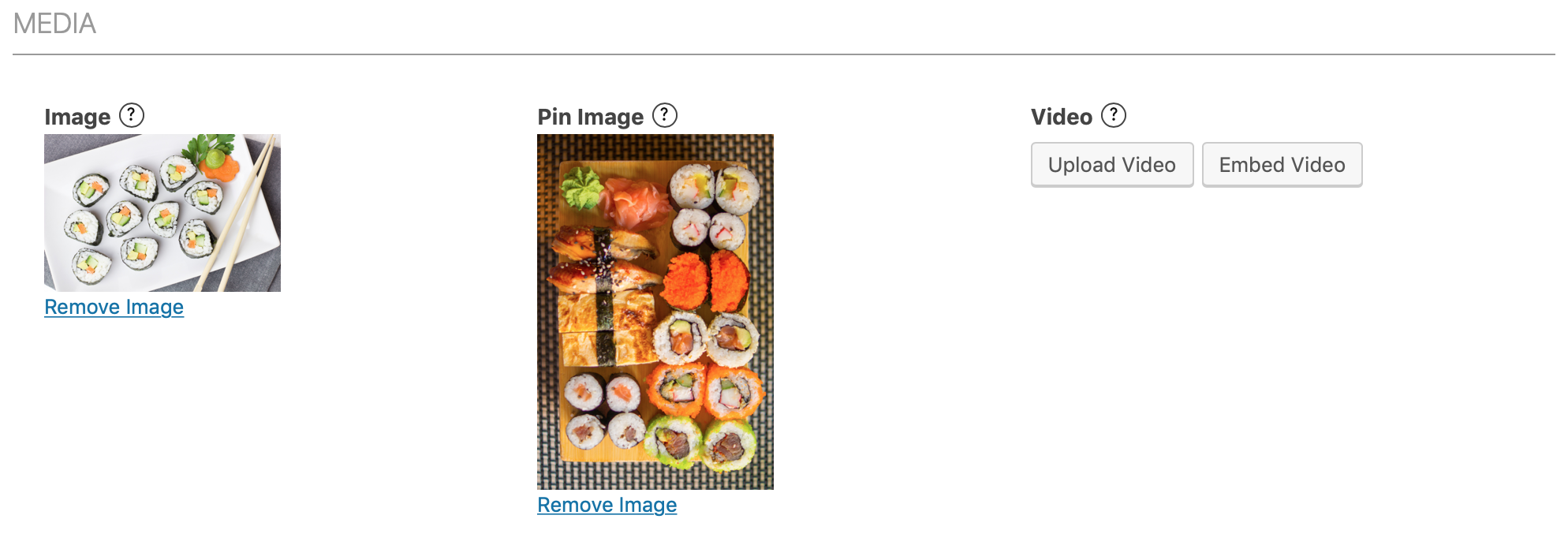
When creating/editing a recipe you’ll have the option to set a specific image for the pin button:
Using a Pin Image from other plugins
Section titled “Using a Pin Image from other plugins”If you’re already using Hubbub Pro to set a Pinterest image for the recipe’s parent post, you can use that image for the Pin Recipe button without adding it to WP Recipe Maker again. On WP Recipe Maker > Settings > Social Sharing, enable Use Image & Description from Other Plugins. This setting is disabled by default.
WP Recipe Maker supports both current and older Hubbub Pro versions. When a Hubbub Pinterest image is set for the parent post, it takes priority over WP Recipe Maker’s pin image, even if the recipe has no image of its own. Without a Hubbub image, WP Recipe Maker keeps using its own configured pin image and description.
For the Hubbub image, the description is chosen in this order: the post’s custom Pinterest description, the image’s custom Pinterest description, then the image’s alt text or title according to the Hubbub description-source setting. If none provides a description, the Pin Description configured in WP Recipe Maker is kept. Clearing the Hubbub image returns the button to WP Recipe Maker’s configured image.
