
Favorite Recipes
With the Favorite Recipes feature, visitors can add the recipes on your site to their favorites. These favorites will then show up on a page of your choosing. If the visitor is not logged in, favorites will be stored in their own browser’s local storage and be there when they visit the site again using that same browser. If a visitor logs in, their favorites will be stored as user meta, and be available anytime they log in on any device.
Creating a Favorite Recipes page
Section titled “Creating a Favorite Recipes page”We recommend creating a page to list the favorites first. This can be a regular WordPress page that you add the “Favorite Recipes” block or [wprm-favorite-recipes] shortcode to.
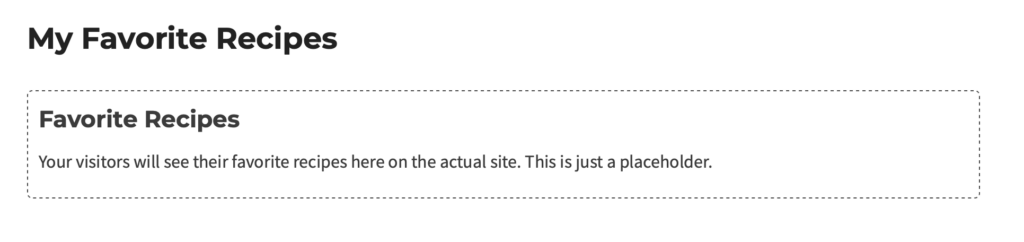
Once you’ve created a page, make sure to fill in the “Link to Favorite Recipes feature” setting on the WP Recipe Maker > Settings > Favorites page. This should be a link to the page you just created.
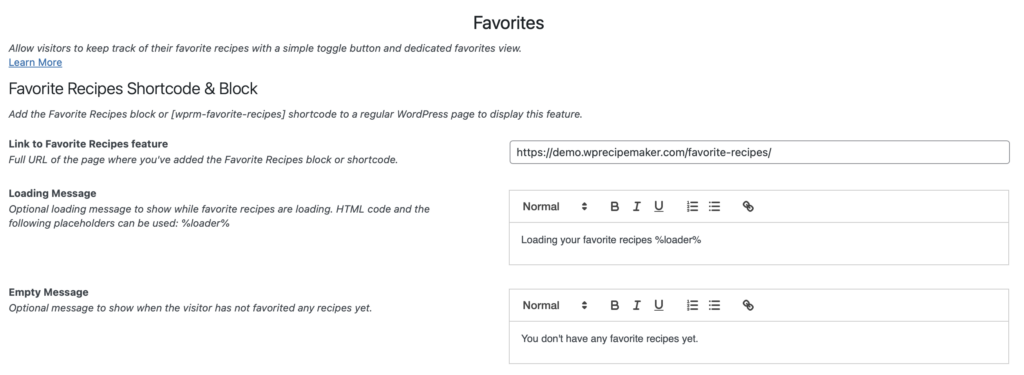
Setting the link there makes sure the tooltip that will show up in the recipe card can point your visitors to the correct page.
You might also want to change the settings in the “Favorite Recipe Templates” section. This template decides what the recipes in the favorites list look like. You have full control and can show any fields you want by editing these templates in the Template Editor.
Adding a Favorite button to your recipe card
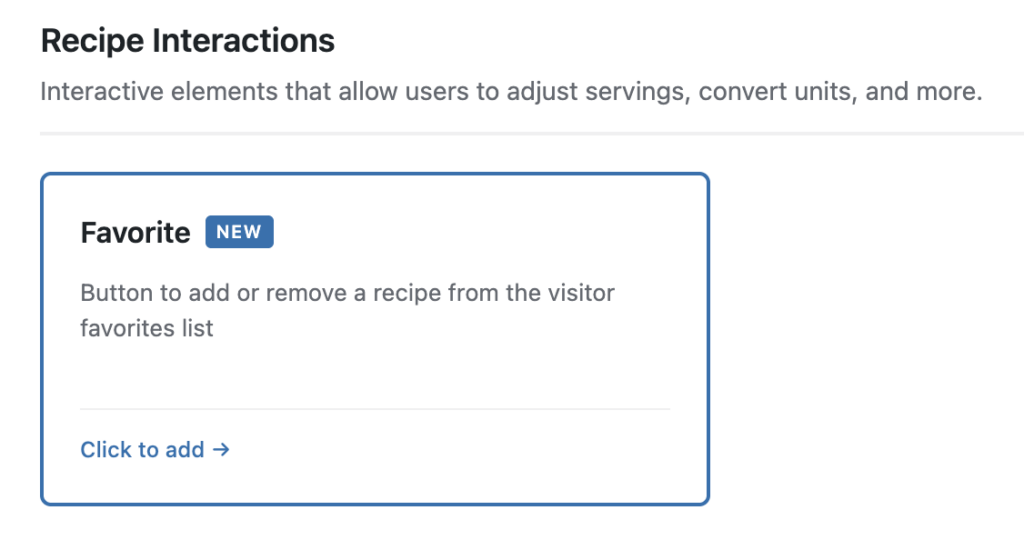
Section titled “Adding a Favorite button to your recipe card”We now have a page that lists favorite recipes, but we don’t actually have a way to add recipes to that list. That’s where the “Favorite” block comes in. Use our Template Editor to edit your recipe card template and go to “Add Blocks” to add this button to your recipe card.
Once you’ve added the “Favorite” block you can edit it through “Edit Blocks” and make it look the way you want. You can change icons and text (or remove text altogether to have only the icon), change colors, …
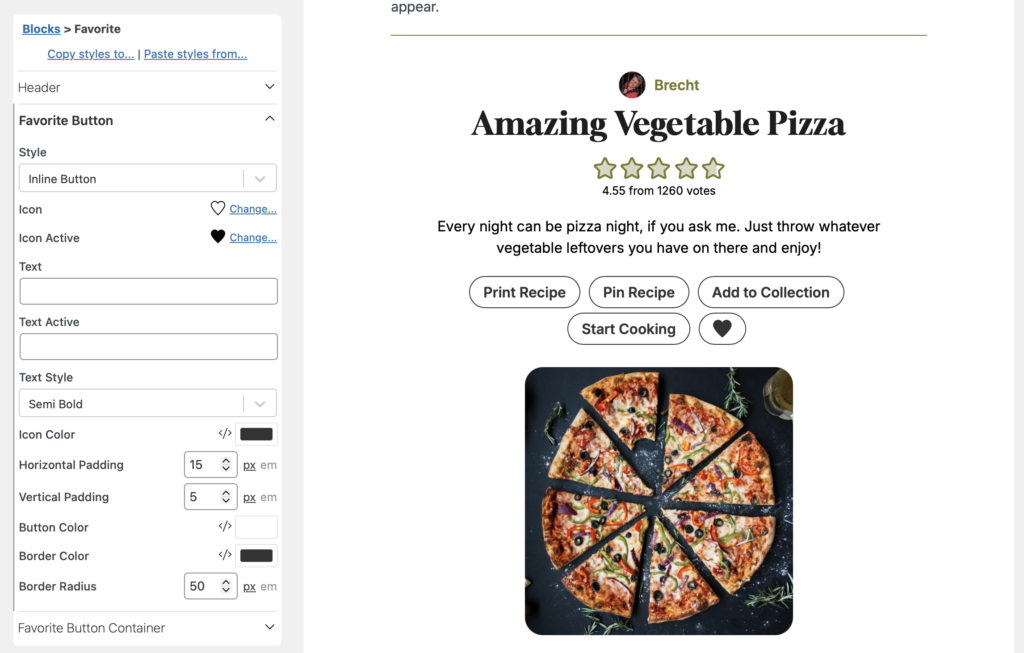
Once you’re happy with the result, save the template and make sure this template you’ve created is actually the one in use on the WP Recipe Maker > Settings > Recipe Template page. If it is, your visitors are now able to save recipes to the favorite list!
Combining Recipe Favorites with Recipe Collections
Section titled “Combining Recipe Favorites with Recipe Collections”The favorites feature could be used in combination with our more advanced Recipe Collections feature. On the WP Recipe Maker > Settings > Recipe Collections page you have the option to enable “Show Favorites Collection”. When that’s enabled, the favorites will show up alongside other collections automatically. This makes it easy for your users to easily use their favorites in other collections they might be creating.