
Import recipe from text
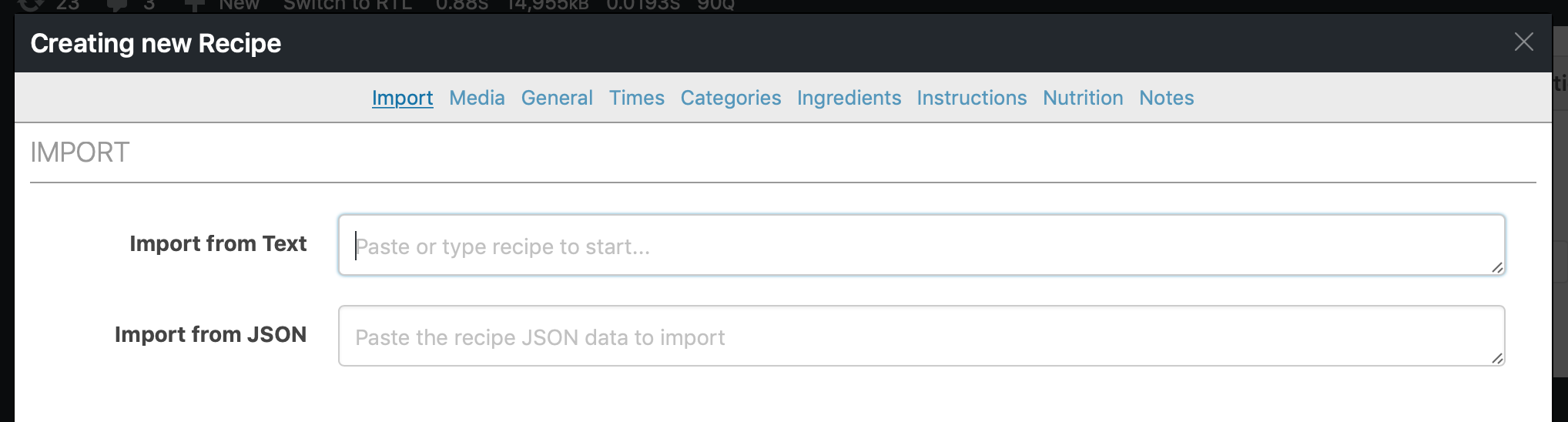
Speed up the process of creating your recipes by pasting in a recipe and selecting the different fields. Start by copying the recipe you want to import and pasting it in the “Import from Text” textbox in the recipe modal:
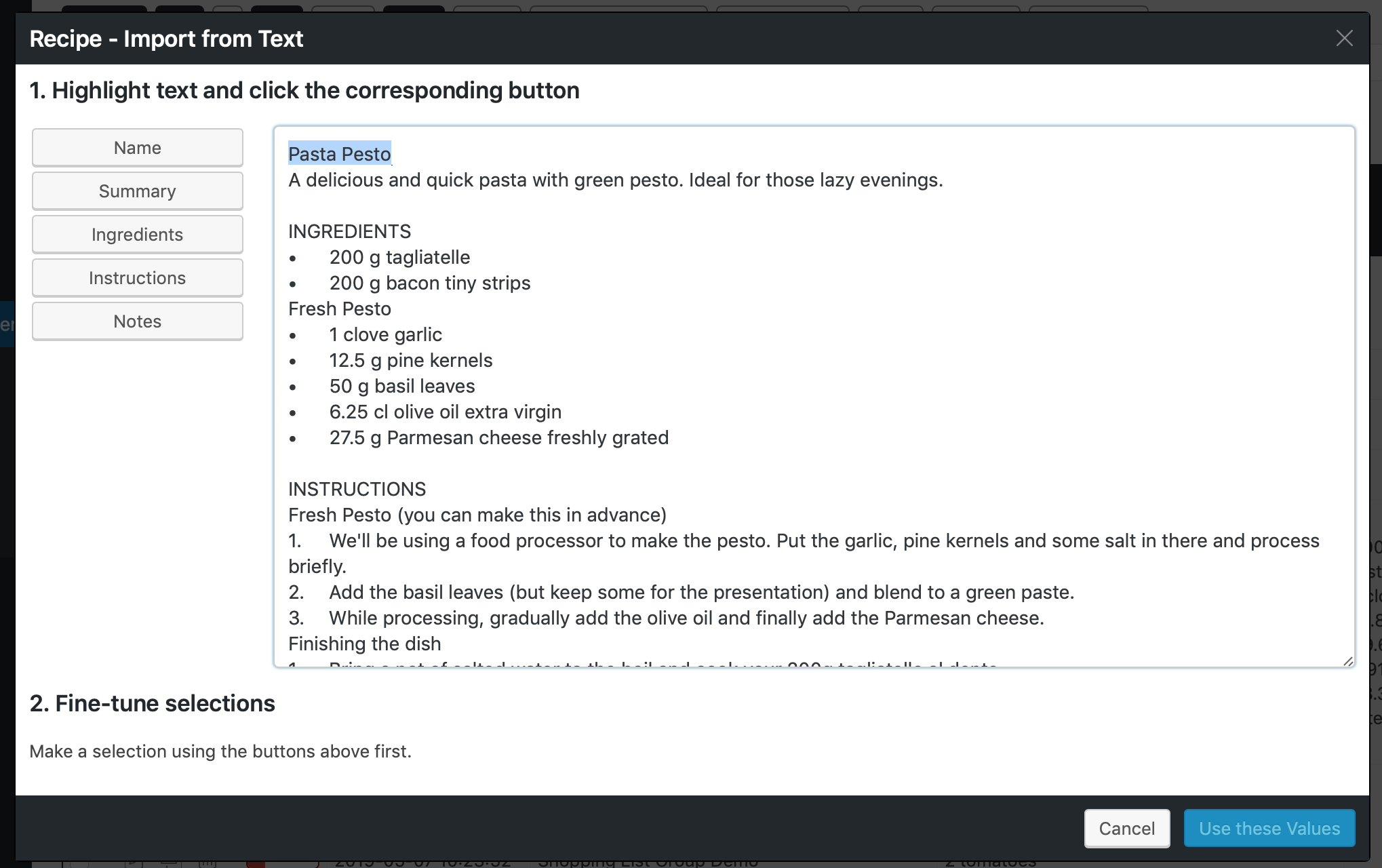
Once you do that, a new modal will show up were you can select different parts of the recipe and click on the corresponding button. Here we’ve selected the recipe name and should now click on the “Name” button, for example:
Once you’ve made selections you’ll be able to finetune these below. Make sure to indicate any ingredient and instruction group headers using the checkbox:
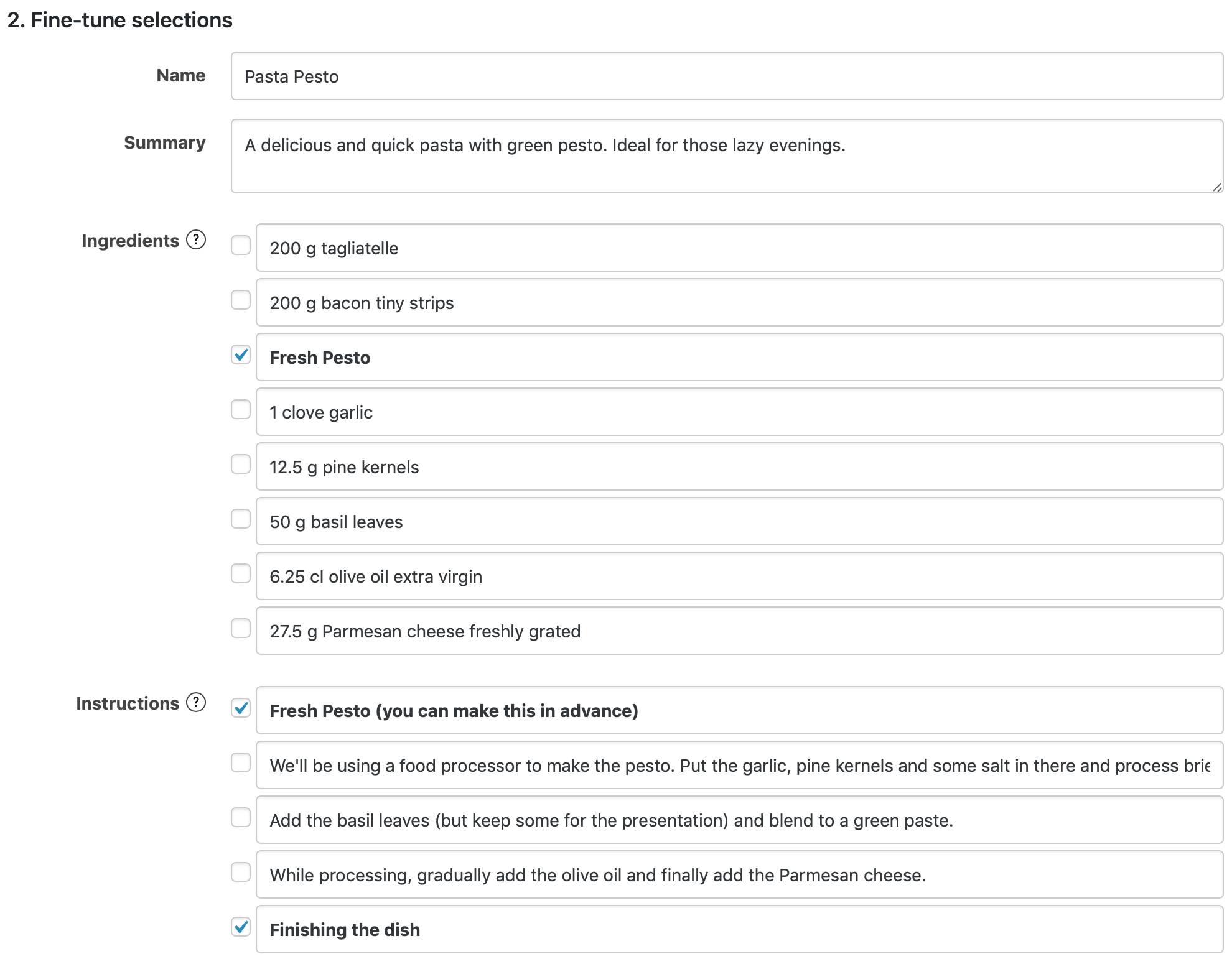
Just click on the blue “Use these Values” button to confirm!
Importing equipment names and notes
Section titled “Importing equipment names and notes”You can choose how equipment notes are separated from equipment names during text import. Before opening Import from Text, go to WP Recipe Maker > Settings > Import > Equipment Parsing, choose your settings and save them.
The Equipment Notes Identifier dropdown has four options:
- Everything after the first comma: split the equipment name and notes at the first comma.
- Everything inside parentheses: split at the first opening parenthesis when a complete pair of parentheses is present. Text after the closing parenthesis also stays in the notes.
- Comma or parentheses, whichever comes first: use whichever of those identifiers appears first in the equipment text.
- Do not import to equipment notes: keep the equipment name and notes together in the name field. This is the default, so enable one of the other options if you want to split out notes.
Remove Identifier is enabled by default and is shown when you select a splitting option. It removes the comma used to start the notes, or the opening and closing parentheses. Turn it off to keep that punctuation in the imported notes.
For example, with Everything after the first comma selected and Remove Identifier enabled, importing Mixing bowl, large creates an equipment item with the name Mixing bowl and the note large. With Remove Identifier disabled, the note is , large. With the default Do not import to equipment notes option, the name stays Mixing bowl, large and the notes field is empty.
To import equipment, highlight the equipment lines in your pasted text and click Equipment. Each line becomes a separate equipment item. Review the selected text, then click Use these Values to apply the name and note parsing. You can check and adjust the resulting fields in the recipe form before saving the recipe.
These settings apply to equipment only. Ingredient notes have their own Ingredient Notes Identifier and Remove Identifier controls under Settings > Import > Ingredient Parsing. Changing equipment parsing does not change ingredient parsing.
See filling in the recipe fields for more about editing the imported recipe.