
Nutrition Label
While the free version already allows you to add calories to recipes, with WP Recipe Maker Premium you can add all the standard nutrition facts to your recipes:
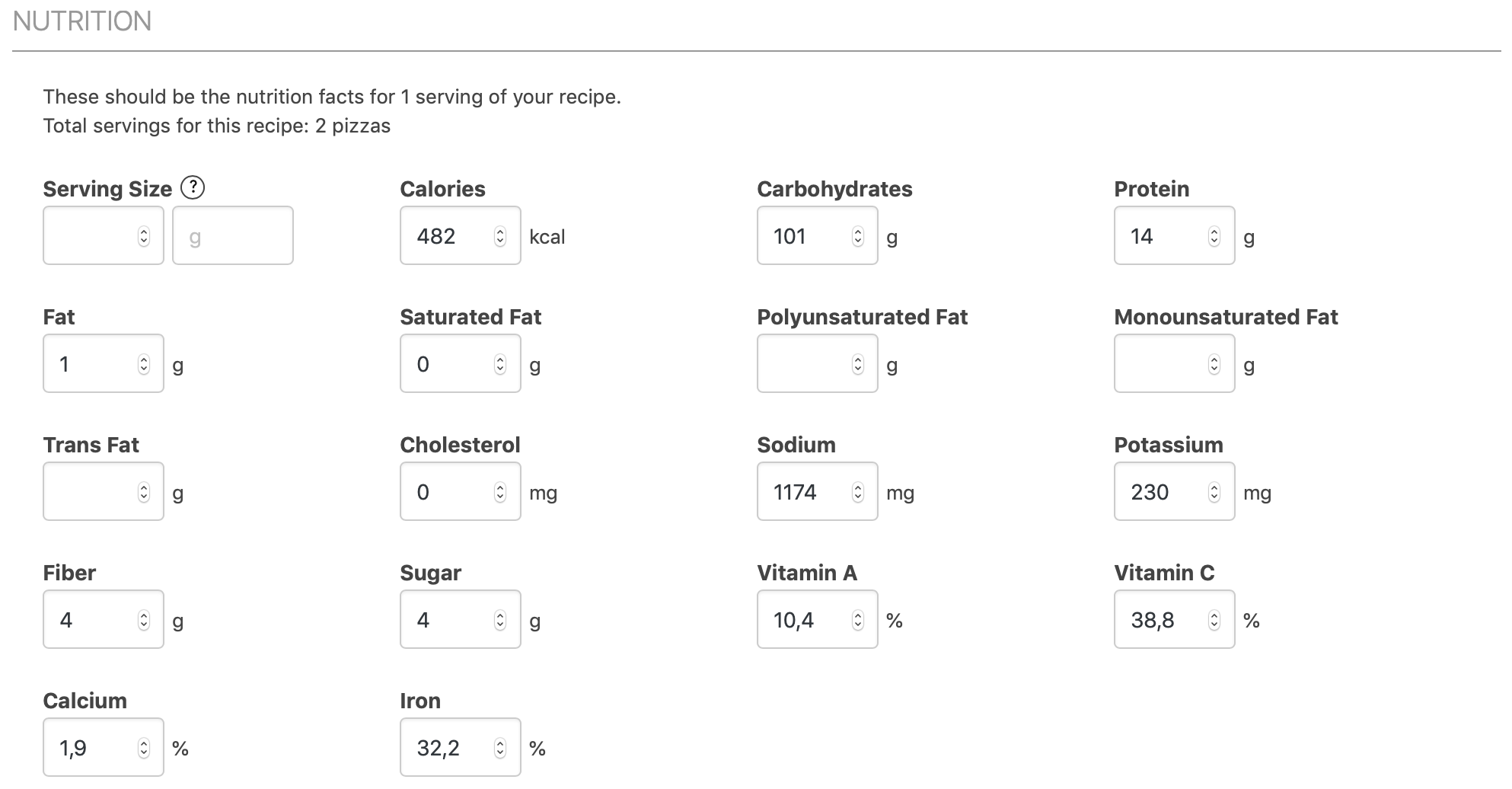
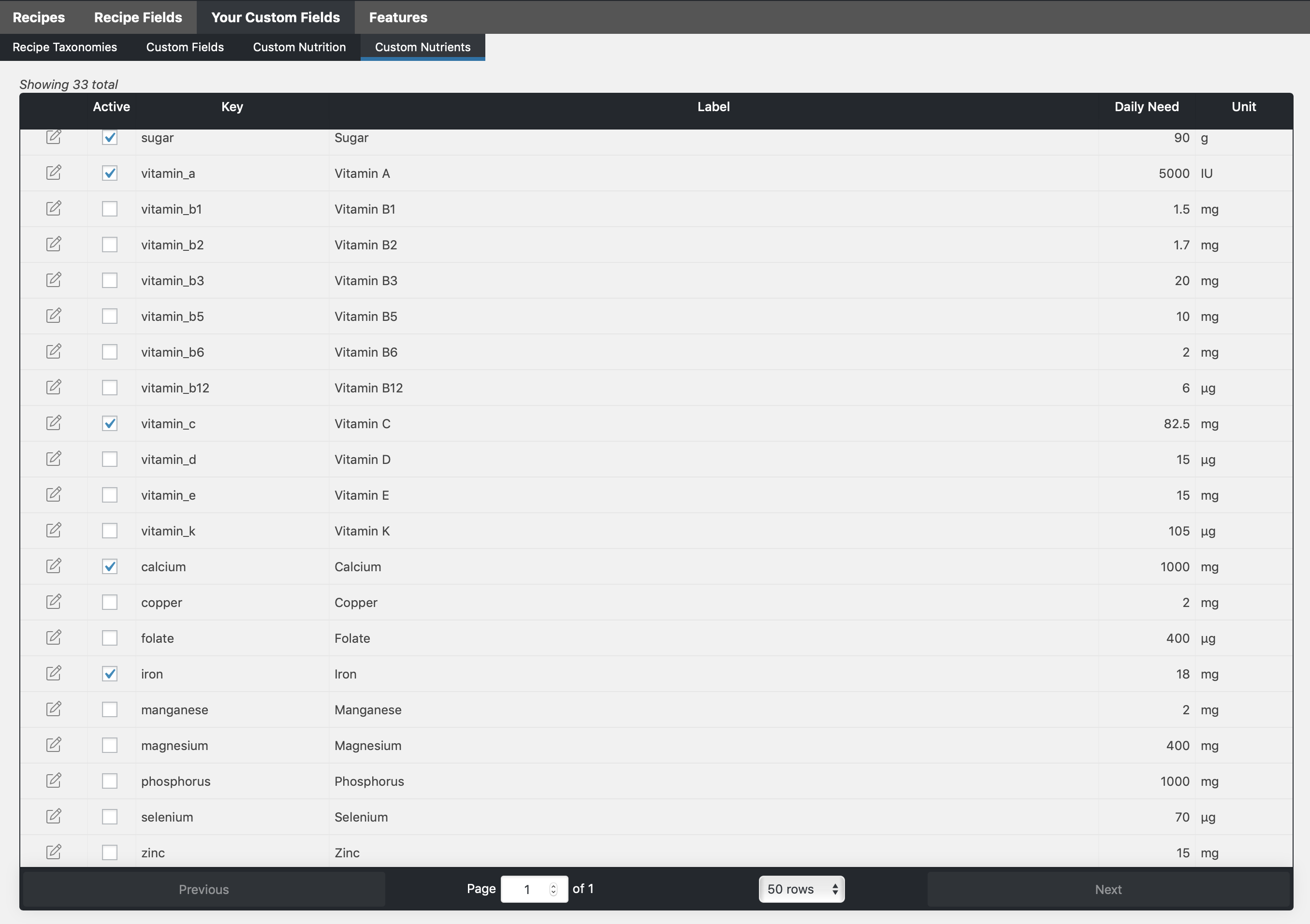
Even more fields can be enabled (or disabled) through the WP Recipe Maker > Manage > Your Custom Fields > Custom Nutrients page:
Where do I get these values?
Section titled “Where do I get these values?”If you have the Pro or Elite Bundle you can use the Nutrition API integration to help calculate these values for you.
With the Premium version these have to be entered manually. Enter the values for 1 nutritional portion of your recipe. The optional Nutrition Servings field lets that portion differ from the recipe’s displayed yield.
Nutrition portions and recipe yield
Section titled “Nutrition portions and recipe yield”The recipe editor’s Nutrition section includes Nutrition Servings: the number of nutritional portions in the complete recipe as entered. Enter a positive number; decimals are supported. Leave it empty to use the Servings count under General. An invalid or nonpositive count also falls back to General > Servings.

- General > Servings and its unit describe the recipe yield and control ingredient scaling.
- Nutrition > Nutrition Servings sets the number of portions used to divide ingredient totals when calculating nutrition.
- Nutrition > Serving Size and its unit describe the size of one nutritional portion. They do not set the portion count or change ingredient-based nutrition calculation.
For example, a recipe can yield 1 cake while its nutrition facts describe 1 slice:
- Under General, set Servings to 1 and its unit to cake.
- Under Nutrition, set Nutrition Servings to 12.
- In the Serving Size fields, enter 1 and slice.
- Enter nutrition values for one slice, or use Calculate Nutrition Facts with the Pro or Elite Bundle to divide the ingredient totals by 12.
Nutrition Servings is available in the free version alongside calories. Serving Size, its unit, the other standard nutrients and the full nutrition label require Premium, Pro or Elite. API calculation requires Pro or Elite.
Changing or clearing Nutrition Servings does not overwrite or recalculate stored nutrition. Review the existing values after changing the count. With Premium, update them manually if needed; with Pro or Elite, explicitly run Calculate Nutrition Facts and apply the results. Dismissing a nutrition warning with “Mark as OK” does not calculate new values.
When a visitor scales this recipe to 2 cakes, the ingredient amounts double and the recipe represents 24 slices. At 0.5 cake, it represents 6 slices. The nutrition per slice and the size of one slice stay the same. Recipe Collections totals use this same relationship between yield and portions.
Serving Size and nutrition per 100g
Section titled “Serving Size and nutrition per 100g”For a label showing nutrition per 100g, enter the weight of one nutritional portion in Serving Size and use g as its unit. For example, if one slice weighs 50 g, use 50 and g, even though the complete cake contains 12 slices. A unit such as “slice” alone cannot be converted to grams.
The per-100g display uses the stored per-portion value multiplied by 100 and divided by that portion’s weight in grams. If a 50 g slice contains 100 kcal, the label shows 200 kcal per 100g. It does not divide by Nutrition Servings again. The portion weight is not calculated automatically; see nutrition calculation and serving size.
Do I have to fill in everything?
Section titled “Do I have to fill in everything?”No, only the fields that you’ve filled in will show up in the label. On the WP Recipe Maker > Settings > Nutrition Label page you’ll also find the “Show values when 0” setting. Enable this if you want nutrition fields to show up in the label if you’ve set them to 0.
The label doesn’t have the nutrient I need
Section titled “The label doesn’t have the nutrient I need”Need more nutrients than the ones included with the plugin? With our Pro or Elite Bundle you can create your own custom and calculated nutrients.
How to display the nutrition facts in the recipe
Section titled “How to display the nutrition facts in the recipe”You can add the nutrition label to the recipe template using the Template Editor.
How to display the nutrition facts outside of the recipe
Section titled “How to display the nutrition facts outside of the recipe”You can add the [wprm-nutrition-label] shortcode where you want the nutrition label to appear. Use the “WP Recipe Maker” button or Gutenberg block to add it to a post or page. It could also be added as a widget and will only appear if you actually have a recipe on that page.
Can I change the daily intake percentages?
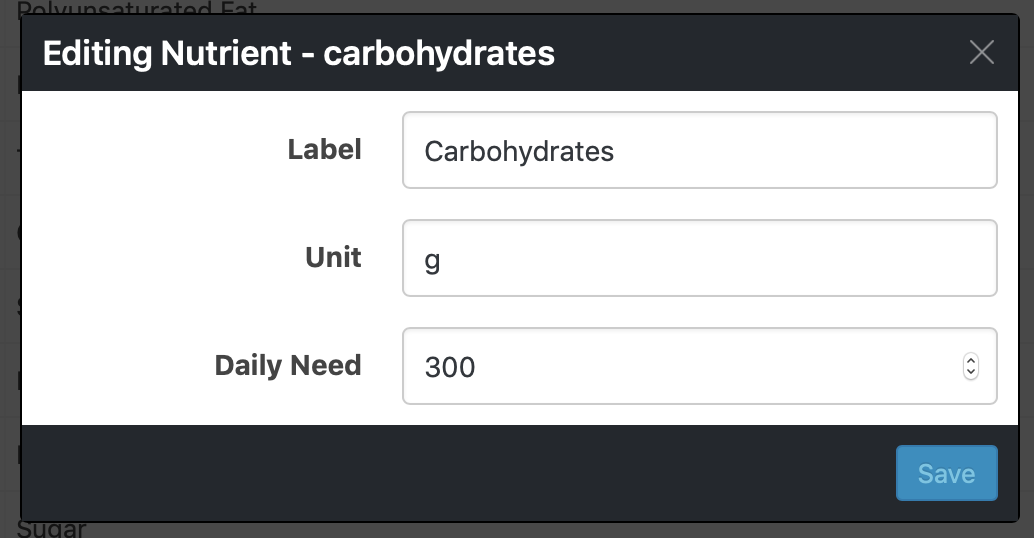
Section titled “Can I change the daily intake percentages?”Yes! It’s possible to change the daily intake values these are calculated against on the WP Recipe Maker > Manage > Your Custom Fields > Custom Nutrients page after clicking on the edit icon:
Changing the Nutrition Label style
Section titled “Changing the Nutrition Label style”Making sure you’re using “Modern” style, you’ll be able to edit the nutrition label layout through the WP Recipe Maker > Settings > Nutrition Label page:
Showing Portions per recipe on the label
Section titled “Showing Portions per recipe on the label”The full nutrition label can show an optional Portions per recipe line. It appears only when Nutrition Servings has an explicit positive count. Leaving that field empty keeps the line hidden, even when General > Servings is filled in.
The Modern style’s default FDA and Classic layouts include the block below the recipe name and above Serving Size. Saved custom layouts are preserved, so add the block manually if your layout does not already contain it:
- Go to WP Recipe Maker > Settings > Nutrition Label and select Modern - Editable layout for Nutrition Label Style.
- Click Edit the Nutrition Label Layout.
- Select Edit Individual Elements and, under Add Element, choose Portions per recipe.
- Move it to the desired position and edit its wording or text style if needed. Keep
%portions%in the text so the count stays dynamic; the default is%portions% portions per recipe. - Click Save Changes and confirm the save.
For the cake example, the line shows “12 portions per recipe” and changes to 24 when the visitor selects 2 cakes. Serving Size and the nutrition values per portion stay unchanged. The portion line can also appear on a per-100g label without changing its per-100g values.
Legacy full labels show the portion line above Amount per Serving or Amount per 100g when Nutrition Servings is set. Simple and grouped nutrient lists keep their existing format.