
Changing the Unit Conversion style
Just getting started with the Template Editor? Check out the Template Editor documentation first!
Unit Conversion requires the Pro or Elite Bundle. First set up the second unit system for your recipes, then customize how it appears in your template.
If your recipe template does not contain the Unit Conversion block yet you can add it in “Add Blocks” mode. After doing that, go to “Edit Blocks” to change the look of the feature. Here we’ve changed it to a dropdown, for example:
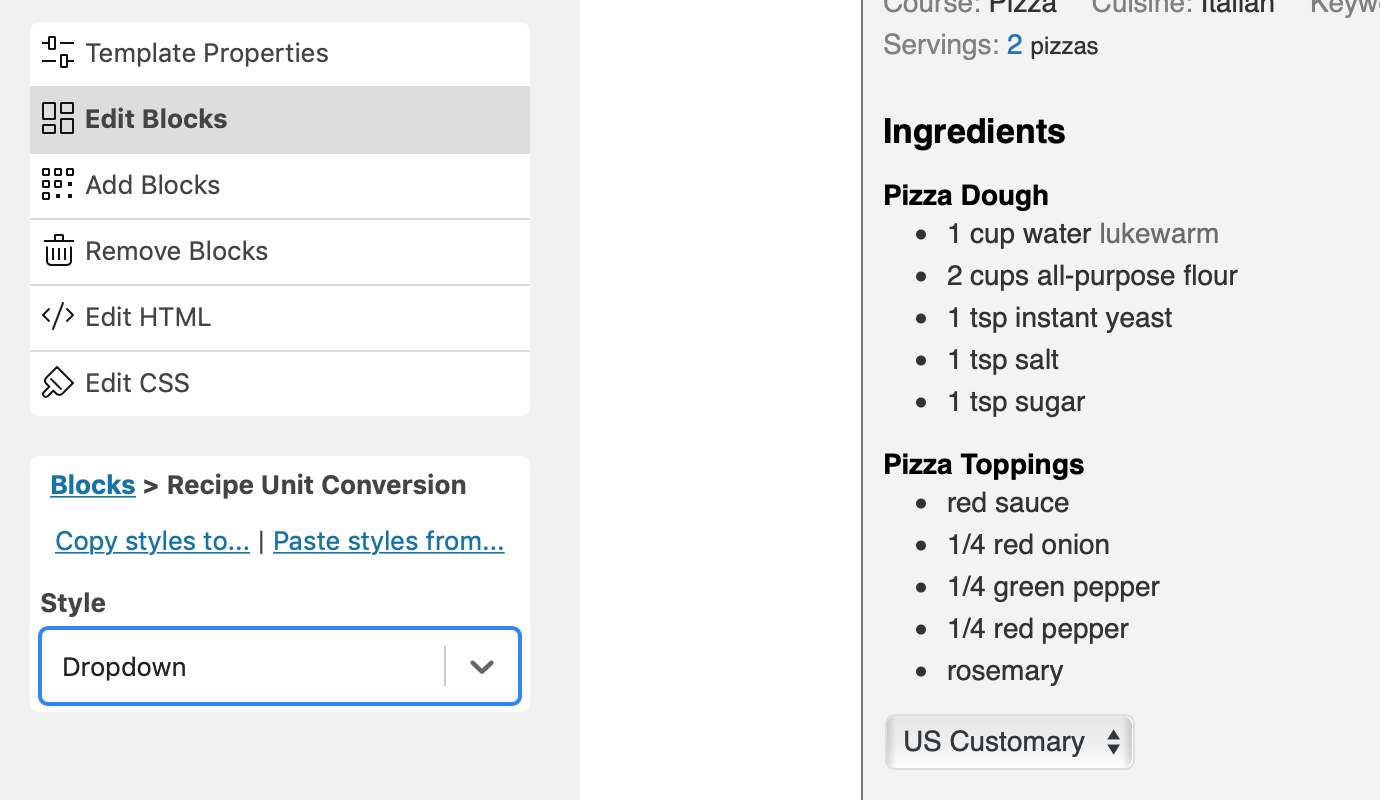
Take note that just adding the block is not enough for the feature to show up. There are steps to go through per recipe to set up the second unit system!
Unit Conversion as part of the ingredients block
Section titled “Unit Conversion as part of the ingredients block”It’s also possible to enable Unit Conversion as part of the ingredients block. The block’s default is “Show selector after the ingredients”. Go to “Edit Blocks” and select the “Recipe Ingredients” block to make changes:
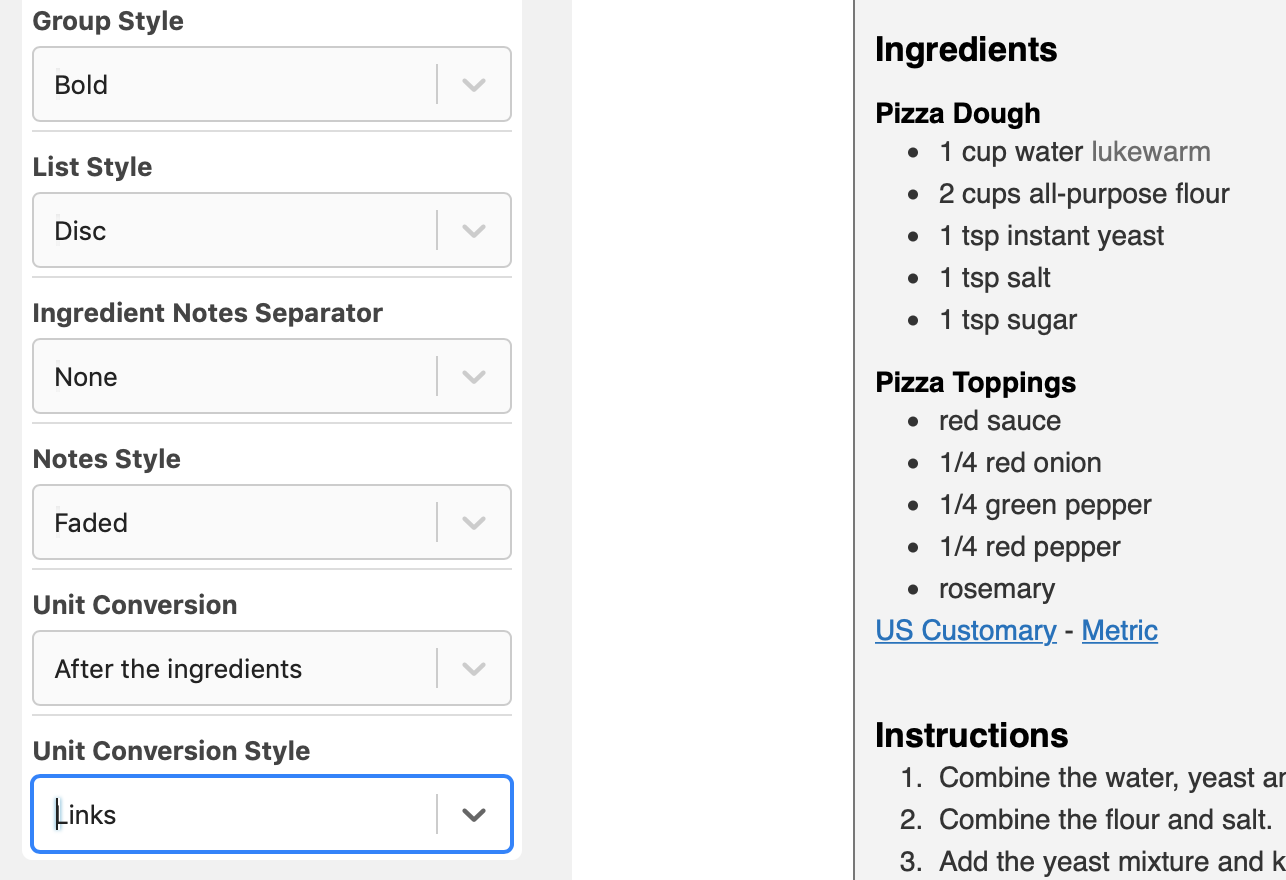
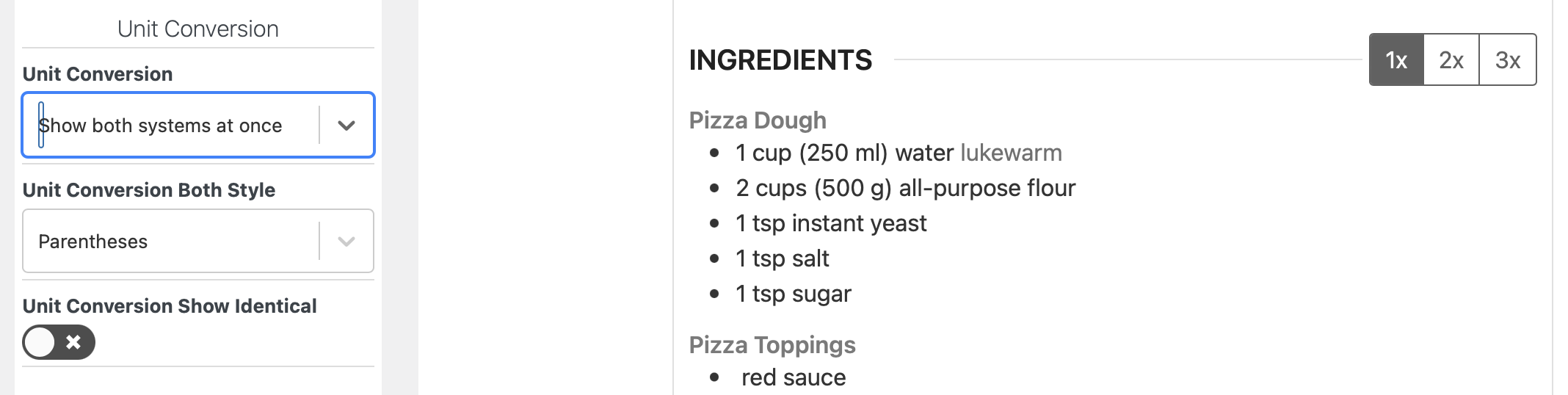
Choose “Show both systems at once” under “Unit Conversion” to display both amounts alongside each ingredient:
Choosing the converted unit position
Section titled “Choosing the converted unit position”The “Recipe Ingredients” block has a “Converted Unit Position” setting. It appears when “Unit Conversion” is set to “Show both systems at once”. Choose one of these options:
- After Original Amount/Unit (default):
2 (180 g) tomatoes, chopped - After Ingredient Name, Before Notes:
2 tomatoes (180 g), chopped - After Ingredient Notes:
2 tomatoes, chopped (180 g)
These examples use “Parentheses” for “Both Style” and a comma before the ingredient notes. “Both Style” also offers “None” and “Slash”. If an ingredient has no notes, “After Ingredient Notes” puts the converted amount after its name.
Save your template changes when you’re happy with the preview. This setting changes where the converted amount and unit appear; the second unit system still needs to be set up for each recipe.