Adding text, HTML or 3rd party shortcodes
Just getting started with the Template Editor? Check out the Template Editor documentation first!
Adding some text, a link or an image
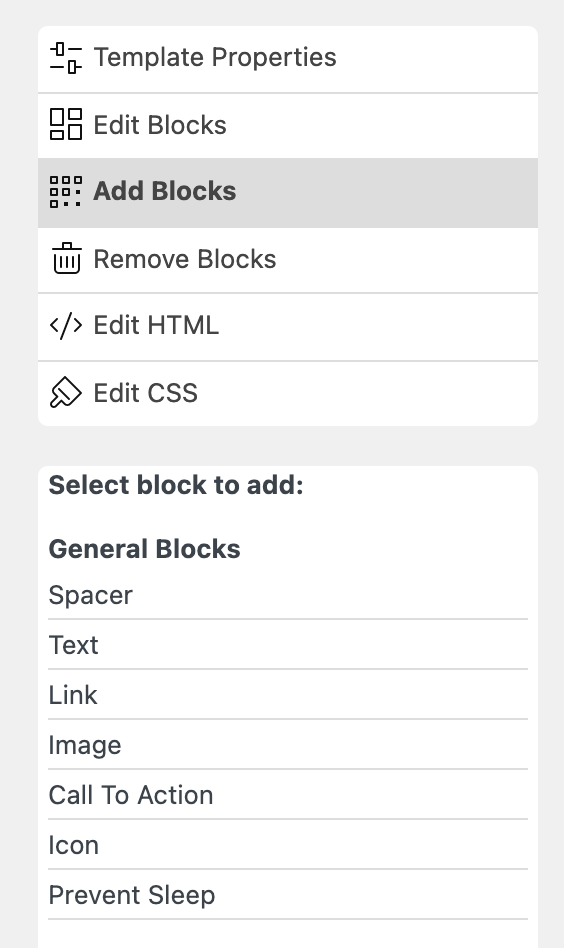
Section titled “Adding some text, a link or an image”When in “Add Blocks” in the Template Editor you’ll find a few “General Blocks” that can be used to add text, link or image to the recipe template:
The result will be that this same text/link/image will show up for every recipe using this template. This can be useful for some disclaimer text, for example, or when adding a logo to the print template.
Adding any custom HTML or shortcode
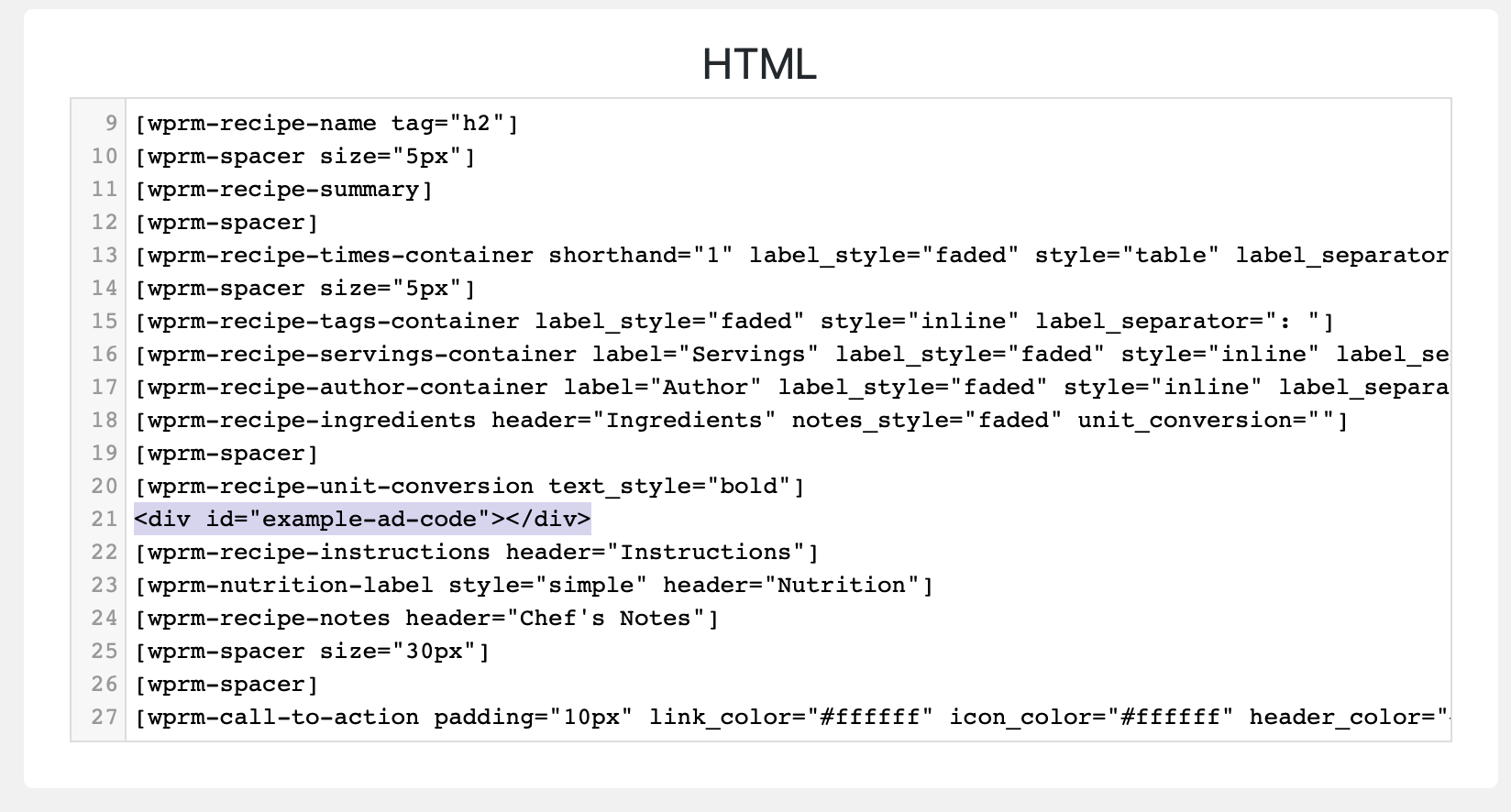
Section titled “Adding any custom HTML or shortcode”To add any HTML or shortcodes from other plugins you’ll want to go to “Edit HTML” mode and just paste it in there.
This can be used to add an advertisement code exactly where you want it to show up in the template, for example.
For this screenshot we’ve added an example ad between the ingredients and instructions: