
Migrating from Legacy to Modern mode
Modern mode is the new recipe template mode as of WP Recipe Maker 4.0.0 and is not backwards compatible with old templates. If you want to use the Template Editor you need to be using the modern template mode.
Using a custom template in legacy mode?
Section titled “Using a custom template in legacy mode?”Modern mode is not backwards compatible, so if you’re using a custom built legacy template you will not be able to switch to modern mode without losing that template. It’s possible to build a custom template for modern mode as well, following these instructions.
Differences between legacy and modern mode
Section titled “Differences between legacy and modern mode”In legacy mode it’s possible to make basic changes to your template right from the settings page. In modern mode those settings won’t be available anymore and moved elsewhere instead. Follow these to links to see how to make these changes in modern mode:
Template Options
- Font size and font family
- Recipe image size
- Instruction image size and alignment
- Ingredient and instruction list style
Template Colors
- Changing template colors
- Changing the star rating color
Template Labels
- Changing template labels
Specific recipe features
- Adding the nutrition label
- Changing the adjustable servings display mode
- The print version will use a modern template as well
- Recipe snippets will use a modern template, see next section
Recipe Snippets in Modern Mode
Section titled “Recipe Snippets in Modern Mode”In modern mode, recipe snippets use a template as well. This allows you to display more than just a simple “Jump to Recipe” link, like the Snippet Summary template, for example.
If you were manually adding snippets before, they will still work. Those who were using automatic recipe snippets will need to enable that feature again, choosing one of the snippet templates now.
Switching from legacy to modern mode
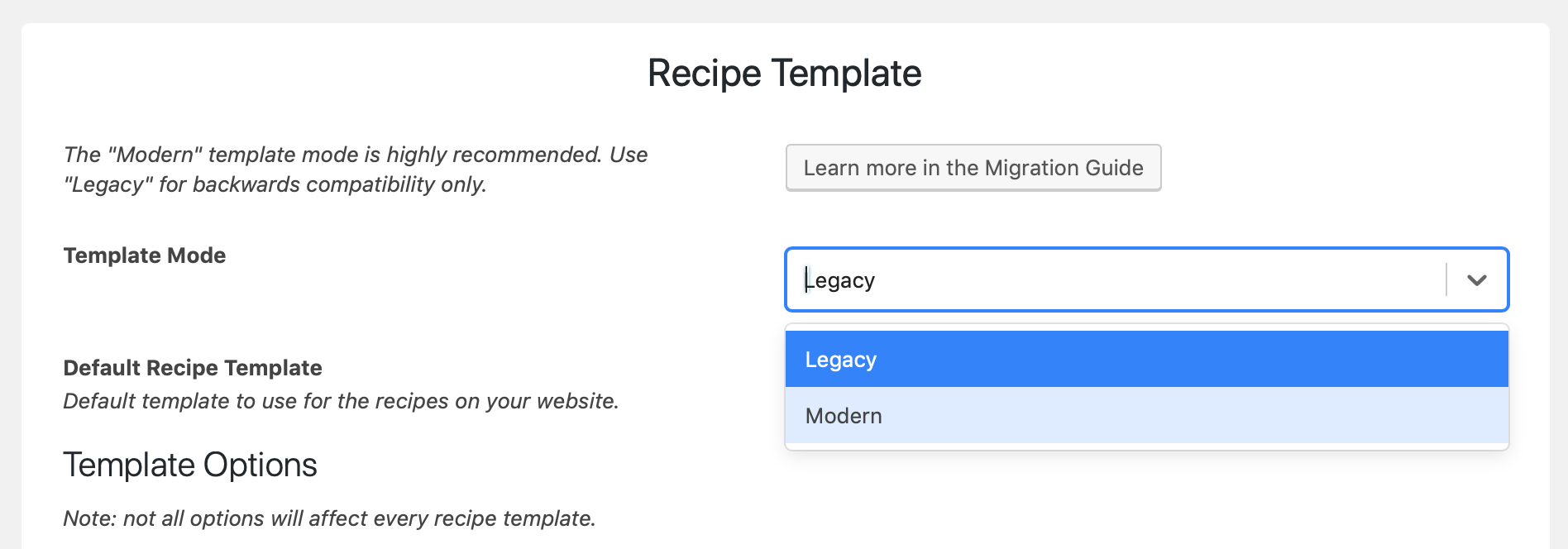
Section titled “Switching from legacy to modern mode”Ready to switch? You can change the template mode on the WP Recipe Maker > Settings > Recipe Template page:
Check out the Template Editor documentation to learn more.