
Recipe Metadata Checker
On the WP Recipe Maker > Manage page, the SEO column helps you find recipes whose metadata needs attention. The checker is included in the free version of WP Recipe Maker.
Hovering over an indicator opens an interactive list of issues with actions to help resolve them. Clicking the indicator opens the place to fix the first actionable issue.
Fixing issues
Section titled “Fixing issues”- Open WP Recipe Maker > Manage and find the recipe in the Recipes overview. You can sort or filter by SEO to find recipes that need attention.
- Hover over its SEO indicator to see the issue list. Required issues appear before recommendations and ratings.
- Click Fix beside a missing field to open the recipe editor at the relevant section, such as Media, Times, Categories or Nutrition. Fill in the information and save the recipe.
- Use Add to post or Change setting when the issue concerns where metadata is output or whether visitors can rate the recipe.
The action buttons are available for recipes you have permission to edit. A button opens the relevant editor or setting; you still need to make and save the change.
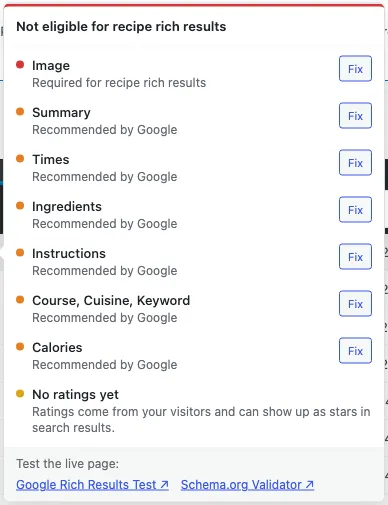
Required and recommended fields
Section titled “Required and recommended fields”For food recipes, the checker treats Name and Image as required fields for recipe rich results. Missing either needs attention first.
Recommended fields include Summary, Servings, Times, Ingredients, Instructions, Course, Cuisine, Keyword and Calories. For the time check, enter a total time or both prep and cook time. Recommendations help make the metadata more complete; a warning is different from a missing required field.
A Good result means the checker found no issues. No Ratings means the remaining issue concerns visitor ratings. Warnings means there are recommended issues, and Bad means there are required issues or metadata output problems. Read the issue list for the reason instead of relying only on the indicator.
These checks help you prepare metadata. They do not guarantee higher rankings or that Google will display a recipe rich result. See Google’s recipe structured data guidance and our recipe metadata guide for more background.
When metadata is not output
Section titled “When metadata is not output”A recipe can have all its fields filled in and still lack metadata on its page:
- Not used in any post: click Add to post to add the recipe to a new or existing post. If it is already in a post, use Find Parent Posts on WP Recipe Maker > Tools instead. See parent post troubleshooting.
- Not the first recipe in its post: Change setting takes you to Only show metadata for first recipe under WP Recipe Maker > Settings > Recipe Metadata. This setting is off by default. When enabled, it limits metadata output to the first food recipe on the page. Review whether that is appropriate for your post before changing it.
- Unpublished content: the checker can show a note that metadata will be output once the parent post is published. If you use public recipe pages, this note refers to publishing the recipe itself.
- Recipe type Other: the indicator shows n/a, because that recipe type does not output metadata. This is intentional if you selected Other for content that should not have recipe metadata.
Image and video warnings
Section titled “Image and video warnings”An image-size warning means the recipe image is less than 1200 pixels wide. This is a recommendation for large previews, separate from the required Image field. Fix opens Media so you can select a larger original image. The width is what this check uses; a landscape image does not need to be 1200 pixels tall. Unknown dimensions are not flagged by this check.
For recipes with a video, the checker also looks for a video name, thumbnail and upload date, plus a recommended description. Fix opens the Media section for missing video details.
If the details are still being fetched, you will see an informational note. If retrieval has failed or the attached video is no longer available, Video left out of the metadata explains why the video is omitted. Click Check video to open Media and check the video, or use Refresh Video Metadata on WP Recipe Maker > Tools. See Recipe Video for more help.
Ratings are different from missing fields
Section titled “Ratings are different from missing fields”No ratings yet means visitors have not rated the recipe. There is no Fix button for this issue: ratings come from your visitors.
If rating features are disabled and the recipe has no ratings, the checker shows Star ratings are turned off with Change setting. This opens the Star Ratings settings. Comment Ratings are available in the free plugin and enabled by default. User Ratings require Premium and are disabled by default. Both contribute to the recipe’s rating.
Test the live page
Section titled “Test the live page”When there is a published page to test, the issue list includes Google Rich Results Test and Schema.org Validator links with that page’s URL already filled in:
- Google Rich Results Test checks the structured data for Google’s supported rich results.
- Schema.org Validator lets you inspect the structured data on the page.
For the usual setup, these links use the published parent post, not the recipe editor. Password-protected or unpublished parent posts do not get these links. If recipes have their own public pages, the links use the published recipe page. External validators need a publicly accessible URL; they cannot fetch a local development site or a page behind a login.
If the SEO column says missing, run a Health Check through WP Recipe Maker > Dashboard to generate the checker data. Run the check again when you want to refresh the dashboard’s overview after making changes.