
Recipe Shortcodes
Recipe Shortcode
Section titled “Recipe Shortcode”While we recommend using the interface to add recipes, you can also display it directly using the recipe shortcode.
- [wprm-recipe id=“123”]
Display a recipe with a specific ID
- [wprm-recipe id=“random”]
Display a random recipe
- [wprm-recipe id=“123” template=“basic”]
Display a specific recipe in a specific template (only when using modern template mode)
Feature Shortcodes
Section titled “Feature Shortcodes”Some features have their own shortcode. Add it to a regular WordPress page to display this feature.
Recipe Snippets
Section titled “Recipe Snippets”- [wprm-recipe-snippet]
Add to a page with a recipe to output the recipe snippet
Recipe Roundup Items
Section titled “Recipe Roundup Items”- [wprm-recipe-roundup-item id=“123”]
Use to get ItemList metadata in recipe roundup posts
Recipe Submission Form
Section titled “Recipe Submission Form”- [wprm-recipe-submission]
Add the Recipe Submission feature
Recipe Collections
Section titled “Recipe Collections”- [wprm-recipe-collections]
Add the Recipe Collections feature
- [wprm-saved-collection id=“123”]
Display a Saved Recipe Collection
Block Shortcodes
Section titled “Block Shortcodes”Block shortcodes are used in the Template Editor. Their attributes automatically translate to properties that can be adjusted using the Template Editor UI.
Shortcode Generator
Section titled “Shortcode Generator”The easiest way to find the shortcode you need is to go to the WP Recipe Maker > Template Editor and use the Shortcode Generator. Here you can select any shortcode available and get a UI to change the different properties.
Once you have the block set up the way you want, you can easily copy the shortcode it generated to use elsewhere.
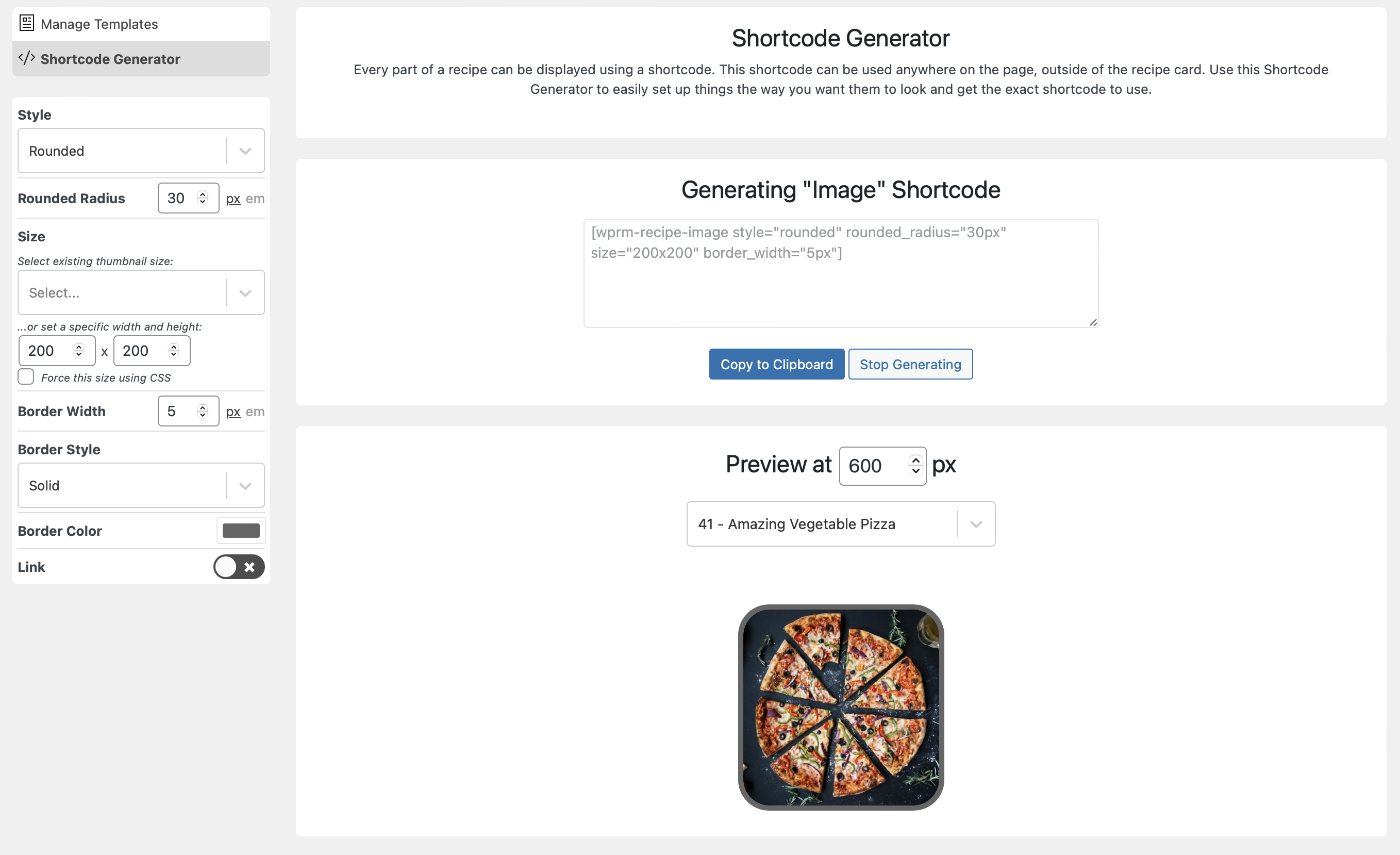
Block Shortcodes in the Template Editor
Section titled “Block Shortcodes in the Template Editor”General Blocks
Section titled “General Blocks”Most general blocks are not tied to a specific recipe. GRO Save to Email is an exception: it uses the current recipe to display its form.
All available attributes can be found in the $attributes value when you check the PHP files in the /wp-recipe-maker/includes/public/shortcodes/general/ folder.
| Shortcode | Name | |
|---|---|---|
| [wprm-call-to-action] | Call to Action | Learn more |
| [wprm-gro-save-to-email] | GRO Save to Email | Shortcode options |
| [wprm-google-preferred-sources] | Google Preferred Sources | Shortcode options |
| [wprm-recipe-jump-to-comments] | Jump to Comments | Link/button to jump to the comment form |
| [wprm-spacer] | Spacer | Add vertical spacing between elements |
Recipe Blocks
Section titled “Recipe Blocks”Recipe blocks need a recipe to work with. If the id=”123″ attribute is not set, the first recipe on the page will be used for outputting, if a recipe can be found.All available attributes can be found in the $attributes value when you check the PHP files in the /wp-recipe-maker/includes/public/shortcodes/recipe/ folder.
| Shortcode | Name | |
|---|---|---|
| [wprm-recipe-add-to-collection] | Add to Recipe Collection | Learn more |
| [wprm-recipe-advanced-adjustable-servings] | Advanced Adjustable Servings | Baking pan changer (Premium) |
| [wprm-recipe-analytics] | Analytics | Learn more |
| [wprm-recipe-author] | Author | |
| [wprm-recipe-author-container] | Author Container | Display the author with label |
| [wprm-recipe-cost] | Estimated Cost | |
| [wprm-recipe-cost-container] | Estimated Cost Container | Display the cost with label |
| [wprm-recipe-custom-field] | Custom Field | Learn more |
| [wprm-recipe-custom-field-container] | Custom Field Container | Display a custom field with label |
| [wprm-recipe-image] | Image | |
| [wprm-recipe-ingredients] | Ingredients | |
| [wprm-recipe-instructions] | Instructions | |
| [wprm-recipe-jump-video] | Jump to Video | Link/button to jump to the recipe video |
| [wprm-recipe-jump] | Jump to Recipe | Link/button to jump to the recipe |
| [wprm-recipe-name] | Name | |
| [wprm-recipe-notes] | Notes | |
| [wprm-recipe-nutrition] | Nutrition | Display 1 nutrition field |
| [wprm-recipe-nutrition-container] | Nutrition Container | Display 1 nutrition field with label |
| [wprm-nutrition-label] | Nutrition Label | Display all nutrition fields |
| [wprm-recipe-pin] | Pin Recipe Image | Link/button to pin the recipe image |
| [wprm-recipe-print] | Print Recipe | Link/button to print the recipe |
| [wprm-recipe-rating] | Star Ratings | |
| [wprm-recipe-roundup-link] | Roundup Link | Link/button to a recipe |
| [wprm-recipe-servings] | Servings | |
| [wprm-recipe-servings-unit] | Servings Unit | |
| [wprm-recipe-servings-container] | Servings Container | Display servings and servings unit with label |
| [wprm-recipe-summary] | Summary | |
| [wprm-recipe-tag] | Tag | Display 1 recipe taxonomy |
| [wprm-recipe-tag-container] | Tag Container | Display 1 recipe taxonomy with label |
| [wprm-recipe-tags-container] | Tags Container | Display all recipe taxonomies |
| [wprm-recipe-time] | Time | Display 1 time field |
| [wprm-recipe-time-container] | Time Container | Display 1 time field with label |
| [wprm-recipe-times-container] | Times Container | Display all time fields |
| [wprm-recipe-unit-conversion] | Unit Conversion | Learn more |
| [wprm-recipe-video] | Video |
Other Shortcodes
Section titled “Other Shortcodes”These are shortcodes that don’t fit in the above categories.
Pan Size
Section titled “Pan Size”[wprm-pan-size][wprm-pan-size id="123" decimals="2"]Displays the pan dimensions for a recipe with Advanced Servings enabled and valid dimensions: Ø 20 cm for a round pan or 20 × 30 cm for a rectangle. Height is not included. Without a valid pan, the output is empty.
id: optional recipe ID; defaults to0to use the current recipe context, or the first recipe found on the page.decimals: defaults toauto, rounding dimensions to whole centimetres or half-inches. Use0,1or2for decimal precision instead; trailing zeros are removed. Output follows the configured decimal separator and translated unit labels.
With Premium, the displayed dimensions follow changes to the pan or recipe servings. Add the shortcode through the Insert adjustable pan size instruction toolbar button or type it directly. See Advanced Adjustable Servings for Baking for setup.
GRO Save to Email
Section titled “GRO Save to Email”[wprm-gro-save-to-email][wprm-gro-save-to-email form_id="your-form-id"]Displays GRO’s Save to Email form for the current recipe. Install and activate the GRO plugin, connect your site to GRO, and configure the form design and email subscription settings in GRO separately.
The optional form_id selects a GRO form. Leave it blank to use GRO’s default Save to Email form. IDs can contain letters, numbers, underscores and hyphens, up to 64 characters. The shortcode uses the current recipe context automatically; it does not provide its own recipe id attribute.
Add the GRO Save to Email block to your recipe template, or use the shortcode on a page where a recipe can be found. It does not display in print or feeds. See GRO Save to Email for the integration setup.
Google Preferred Sources
Section titled “Google Preferred Sources”[wprm-google-preferred-sources][wprm-google-preferred-sources theme="dark" language="en"][wprm-google-preferred-sources display_mode="custom" style="button" text="Follow in Google"]Displays a button for adding your site to Google Preferred Sources. It can be used independently of a recipe and loads Google’s library on pages where it appears.
display_mode:official(default) for Google’s button, orcustomfor a WPRM-styled button.theme:light(default) ordark, for the official button.language: optional language code for the official button, such asenoren-US. Leave it blank to use the visitor’s browser language.- In
custommode,styleacceptstext,button,inline-button(default) orwide-button. The defaulttextis “Add to Preferred Sources” and the defaulticonisgoogle-color.
For a custom button, use the Shortcode Generator to configure text_style, icon_color, text_color, button_color, border_color, border_radius, horizontal_padding and vertical_padding. The shortcode also accepts class for a custom CSS class. It does not display in print or AMP output. See Google Preferred Sources for setup and display options.
Adjustable Quantities
Section titled “Adjustable Quantities”- [adjustable]123[/adjustable]
Quantities inside this shortcode change with the Adjustable Servings feature
Kitchen Timer
Section titled “Kitchen Timer”- [timer seconds=“0” minutes=“2” hours=“0”]2 minutes[/timer]
Creates a link to start a Kitchen Timer
- [wprm-tip]Don’t forget the bread![/wprm-tip]
Add a stylized tip anywhere on the page: Instruction Tips