
Recipe Video
In the Media section you’re able to upload or embed a video for the recipe. These videos will be added to the recipe metadata automatically.
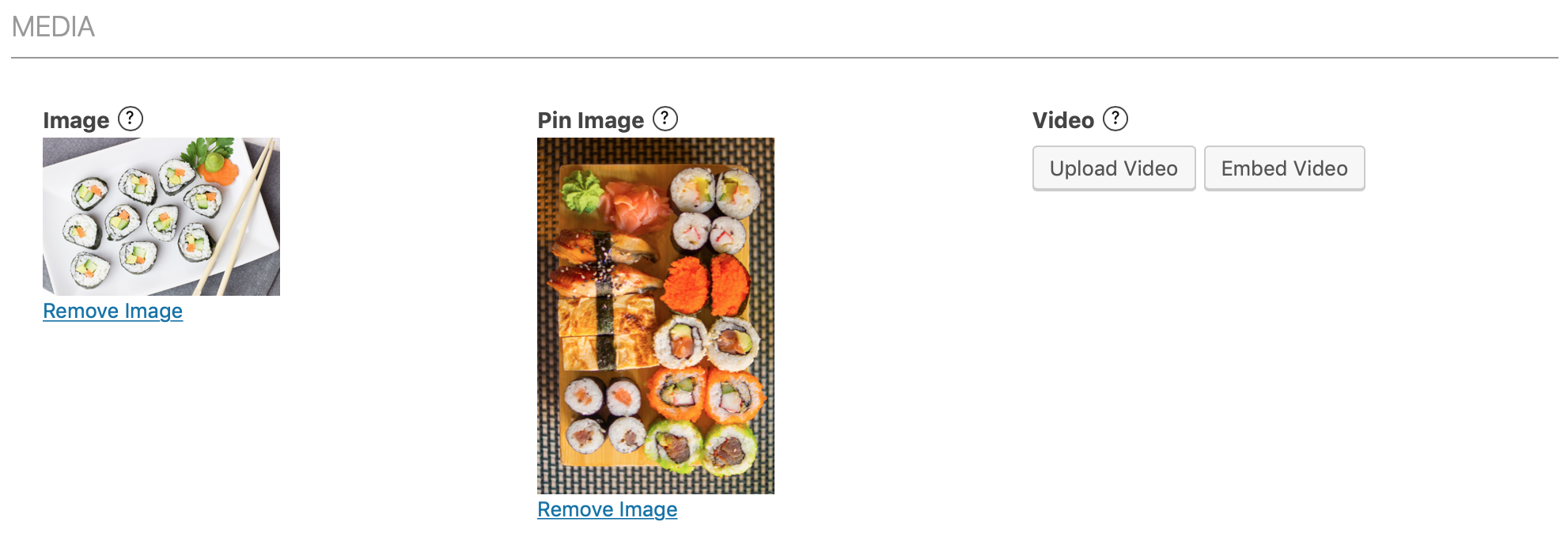
Embedding a Video
Section titled “Embedding a Video”For embedding you can just paste a link to the video for most popular video sites, use their embed code or optionally any WordPress shortcode they provide. Anything that works inside the post content should work here as well. Just a few of the video embed codes that are supported:
- YouTube
- Vimeo
- Mediavine
- AdThrive
WP Recipe Maker retrieves the available video details from supported providers and includes them in the recipe metadata. A video playing correctly does not guarantee complete metadata: not every provider returns every field Google expects.
In the case of YouTube specifically, you might want to consider setting up your own YouTube Data API key as well.
Video Creator and Interaction Statistics
Section titled “Video Creator and Interaction Statistics”Video metadata can include the creator returned by the provider, such as a YouTube channel or the publishing site returned by an oEmbed provider. The creator’s URL is included when available.
Go to WP Recipe Maker > Settings > Recipe Metadata > Video Metadata to configure:
- Video Creator Type: choose Organization (the default) or Person for a creator name returned by the provider. Choose the type that describes the video creator.
- Video Creator Fallback: choose what happens when the provider does not return a creator. The default is Use recipe author for videos uploaded to the Media Library only. You can also choose Use recipe author for all videos or Never use the recipe author.
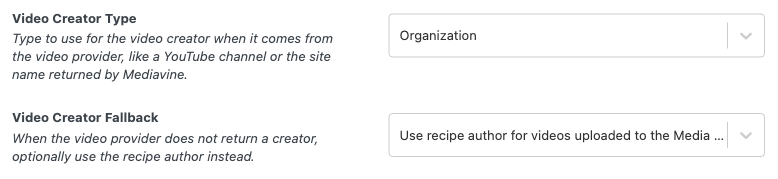
The fallback needs an available recipe author name and uses Person metadata, with an author URL when available. It does not replace a creator returned by the provider. Only use the fallback for all videos if the recipe author also created those embedded videos. See Author Links for setting the recipe author and link.
For YouTube videos, WP Recipe Maker can also include view, like and comment counts as interactionStatistic metadata when the YouTube Data API returns them. Missing counts are omitted, and no share count is added. These are provider statistics, not views tracked by your own site; uploaded videos and other providers do not automatically get the same counts.
Uploading a Video
Section titled “Uploading a Video”For most sites we recommend embedding, but uploading your own videos is possible as well. When you do that make sure to also set a description and poster image for the video. Otherwise your video metadata will be incomplete.
When editing the recipe you can click on the thumbnail of the video. Then under “Replace video” you can click on that video and set a description in the sidebar on the right. See attached screenshot.
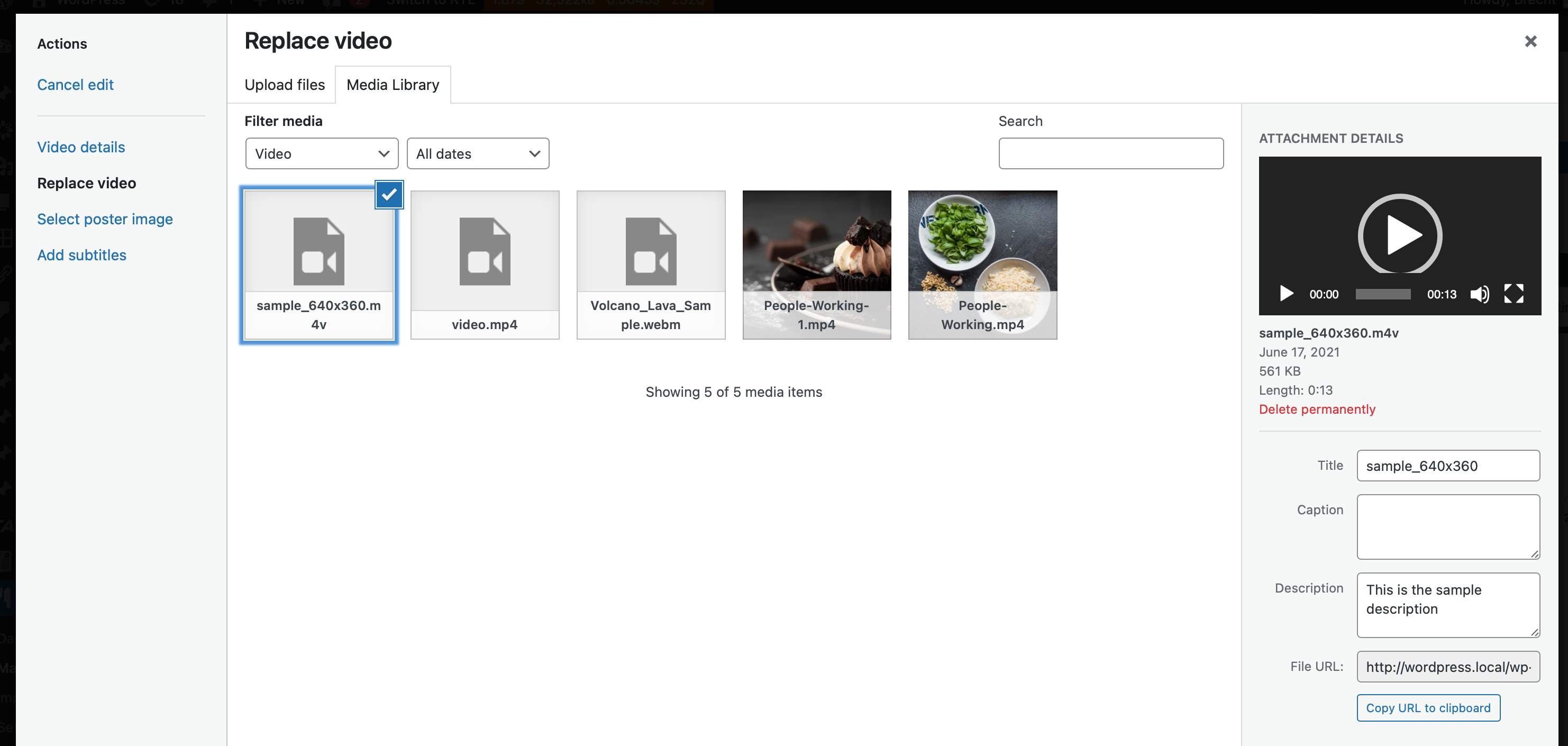
In the menu on the left you also have “Select post image”. That poster image supplies the thumbnailUrl video metadata.
Refreshing Video Metadata
Section titled “Refreshing Video Metadata”Video metadata is stored separately from the video player and normally refreshed in the background on a weekly basis or when the recipe is updated. To request a bulk refresh, go to WP Recipe Maker > Tools and click Refresh Video Metadata.
The progress bar tracks scheduling, not saved metadata. Reaching 100% or seeing “Scheduling finished” means scheduling has finished; background refreshes may still be queued or running.
Once scheduling finishes, click Check refresh status to read the saved results. Review Status, Details, Last saved (UTC), Retry planned (UTC) and Last failure for each recipe. Checking status reads the current results; it does not start another bulk refresh.
- queued, already_pending or processing: the requested refresh has not yet been confirmed as saved. Check again later.
- completed: the refresh completed and its metadata was verified in storage. A later status check can show saved, meaning saved metadata is available and no refresh is pending.
- failed: review the failure details and planned retry. A dispatch failure means the background work could not be started; a provider failure concerns retrieving the video details. Network, TLS, loopback or WordPress cron restrictions can prevent background work from completing.
- skipped: check the details. A recipe without a usable video source has nothing to refresh.
If a request times out or does not finish, use Check refresh status before trying again: some recipes may already be queued.
Refreshing One Recipe Now
Section titled “Refreshing One Recipe Now”For a specific recipe, an administrator who can edit that recipe can enter its Recipe ID on the refresh page and click Refresh this recipe now. This runs one refresh in the current request and verifies that the metadata was saved. It can take a while and does not interrupt an active refresh. If the recipe is busy or already processing, check its status again shortly.
The Tools page is restricted to administrators by default. Granting someone access to Tools does not by itself grant access to Refresh this recipe now.
For YouTube API failures, see Setting your own YouTube Data API key. After a successful refresh, clear your page cache and test the public recipe post with Google’s Rich Results Test. A saved result confirms storage, but the provider may still omit individual metadata fields. See Recipe Metadata for SEO for more about checking the output.
Showing the Recipe Video outside of the recipe box
Section titled “Showing the Recipe Video outside of the recipe box”By default these videos will be shown inside the recipe box. If you don’t want this, you could remove the video field from your own recipe template in the Template Editor and add the [wprm-recipe-video] shortcode wherever in the post content you want the video to appear instead.
The upside of adding the video to the recipe is that it will be included in the recipe metadata. The location of the video on your page (inside or outside the recipe box) doesn’t matter, but has to be added to the recipe so we can use the markup.