
Nutrition Facts Calculation
The Premium plugin gets you the Nutrition Label feature, but you’d have to fill in the values yourself. With the Pro and Elite Bundle we integrate with a Nutrition API to help calculate those values for you.
Where are these values coming from?
Section titled “Where are these values coming from?”We integrate with (and pay for) the Spoonacular API.
Their API only supports English ingredients but by enabling the Translation API this feature can work seamlessly for any language! Even without the translation API you can still use this feature, but you’ll have to manually match every ingredient with an API product by searching for the English name. You’ll only have to do this once per ingredient. Next time you use the same ingredient it will remember the API product you picked.
It’s also possible to define custom nutrition ingredients if you have something specific to use or can’t find an ingredient in the API.
How to calculate nutrition facts
Section titled “How to calculate nutrition facts”Choose the nutrition portion count
Section titled “Choose the nutrition portion count”Before calculating, check Nutrition Servings in the recipe editor’s Nutrition section. This optional field sets the number of nutritional portions in the complete recipe as entered. Use a positive number; decimals are supported. If it is empty or invalid, calculation uses the Servings count under General. If neither provides a positive count, the calculator uses 1.
For a recipe yielding 1 cake cut into 12 slices, keep General > Servings at 1 cake and set Nutrition Servings to 12. The calculator adds up the selected ingredients’ nutrition and divides by 12, giving values for one slice. General > Servings continues to control the displayed yield and ingredient scaling.
Serving Size and its unit describe one nutritional portion, for example 1 slice or 50 g. They do not determine how many portions the recipe contains or the divisor used by the calculator. See Nutrition Label for manual entry and label display.
Calculate and apply the values
Section titled “Calculate and apply the values”Once you’ve activated the Pro or Elite Bundle you’ll be able to use the “Calculate Nutrition Facts” button in the Nutrition section of the recipe modal:
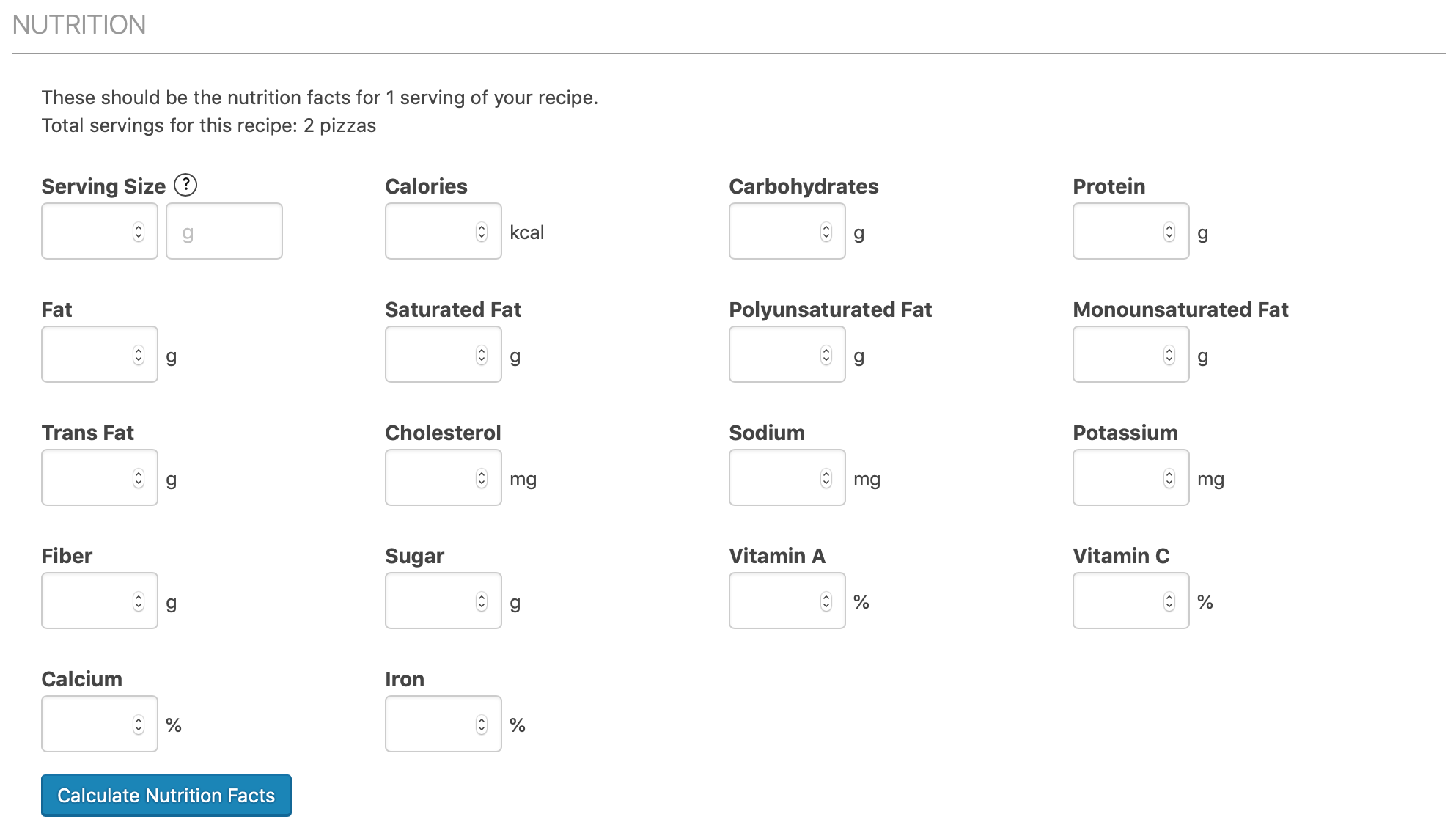
Click on that blue button to start the calculation process.
The next screen you see lists all ingredients in your recipe and automatically tries to match them up with an ingredient in the API.
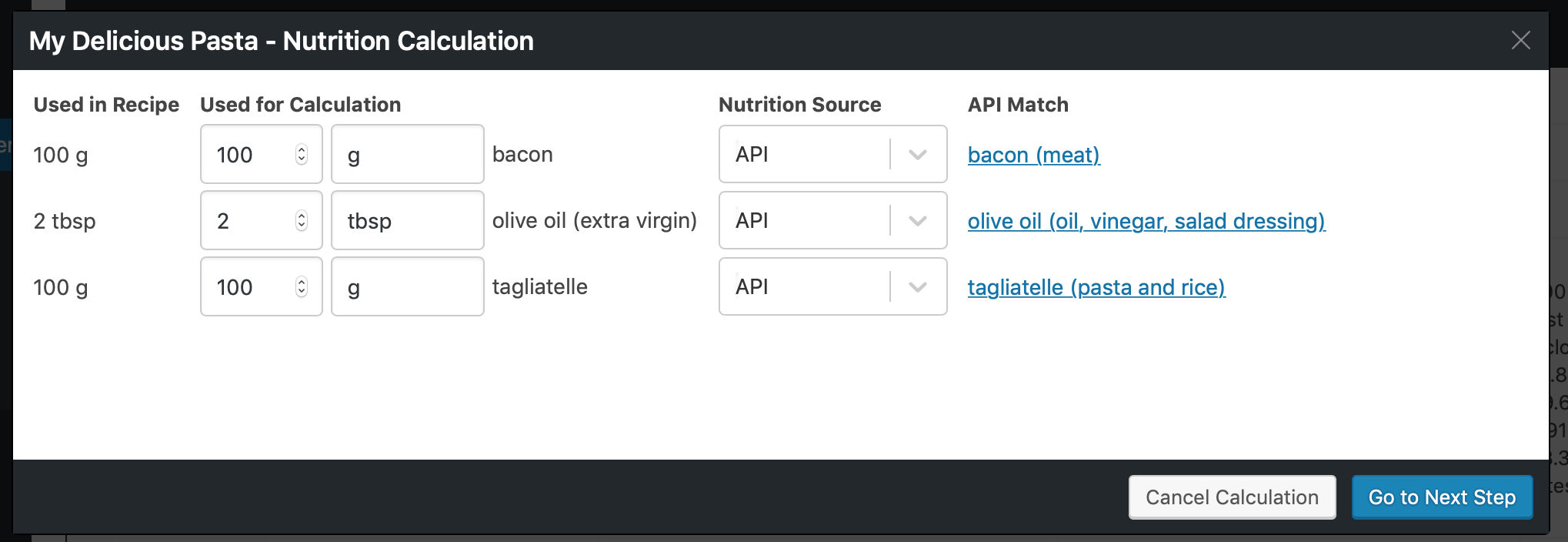
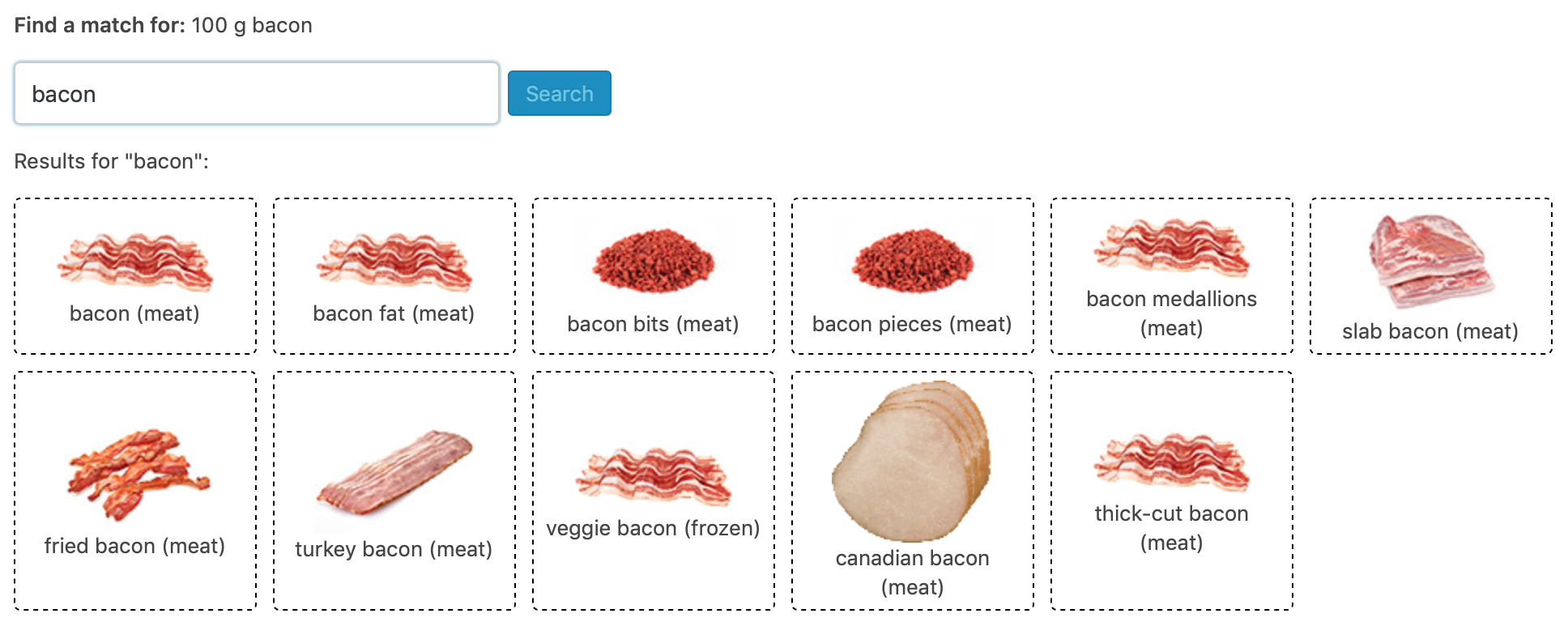
Click on a matched ingredient (or on “no match found”) to manually search for a better match. If your ingredients where not written in English you could search for the English translation here to make a match. This match will be remembered for this particular ingredient if you use it in a recipe again.
If you’re happy with the matched ingredients, click on the “Go to Next Step” button and wait for the API to fetch all the values. The next screen will show the values the API retrieved per ingredient and a preview of the totals.
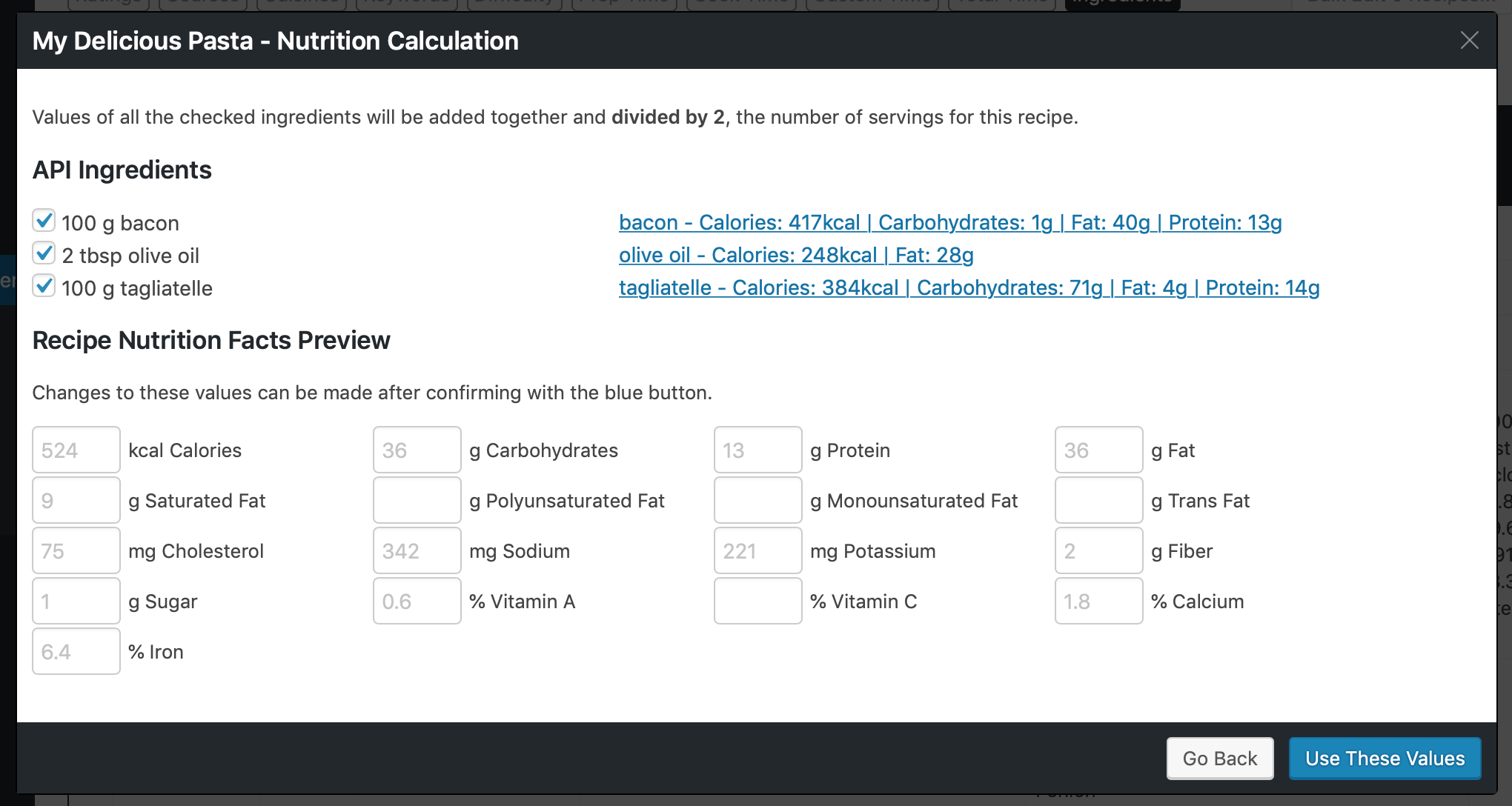
You can make any manual changes you want here by clicking on the nutrition values for an ingredient.
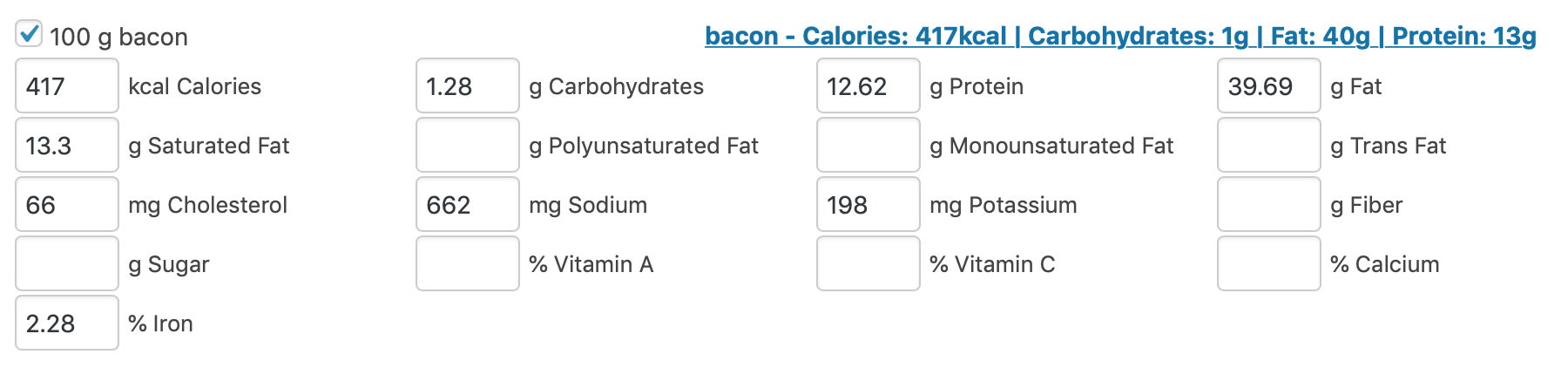
Check the portion count shown in the summary before applying the results. To complete the calculation process, click on Use These Values. This could be the end result for the recipe, for example:
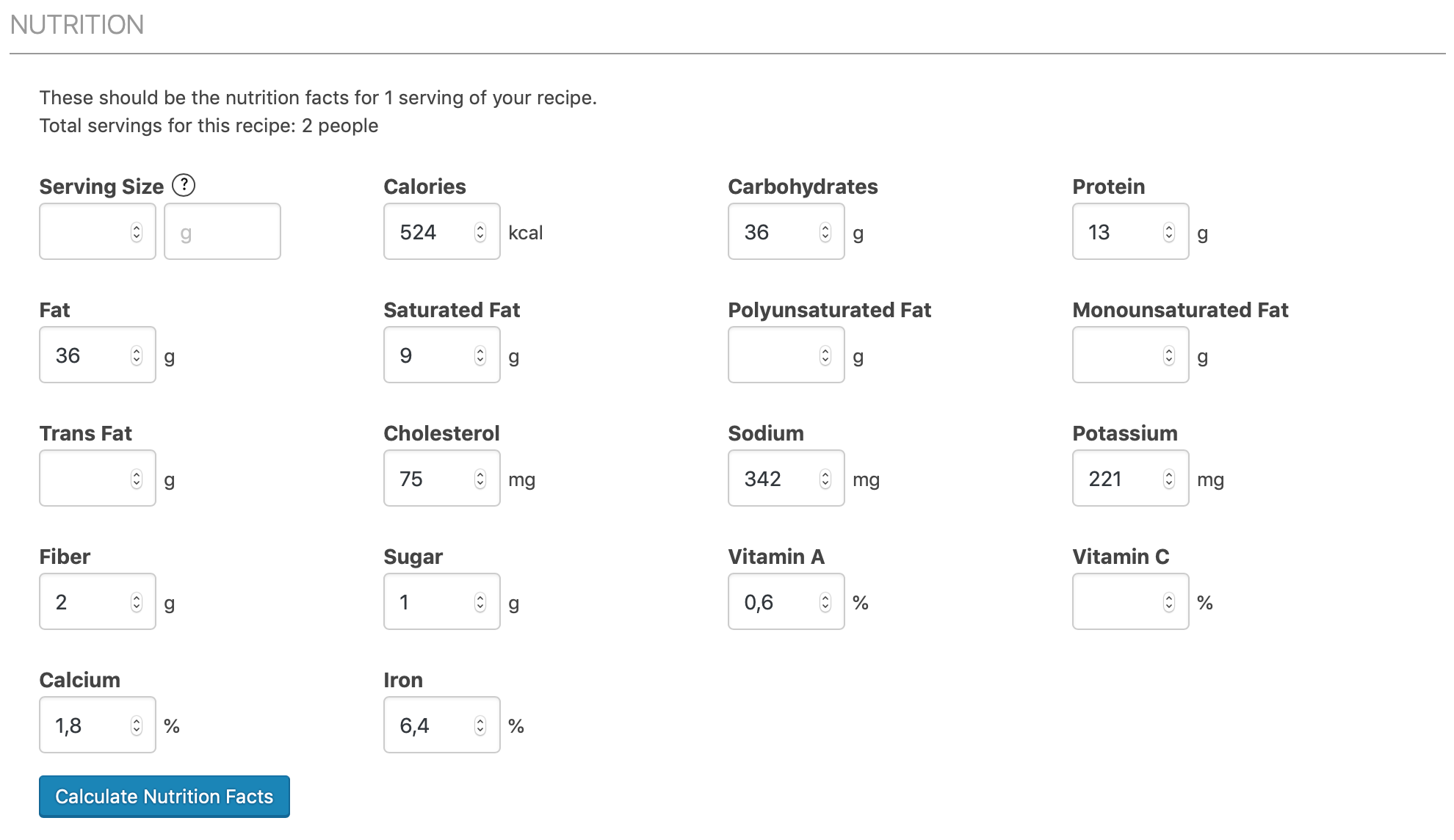
You can make manual changes here, if required.
Recalculate after changing the portion count
Section titled “Recalculate after changing the portion count”Changing or clearing Nutrition Servings does not overwrite or recalculate stored nutrition facts. For example, changing the count from 12 to 6 leaves the previous per-slice values in place until you update them. If the ingredients are unchanged and you now want nutrition for one of 6 larger slices, run Calculate Nutrition Facts again, review the summary and click Use These Values, then save the recipe.
The editor warns about changes that could affect existing nutrition. Mark as OK dismisses that warning; it does not recalculate. Manually entered nutrition must also be reviewed and adjusted to describe one portion of the new size.
Visitor serving adjustments work differently: scaling the example to 2 cakes doubles ingredients and represents 24 slices, while nutrition per slice stays unchanged. You do not need to recalculate for each visitor’s selected yield. Collection totals take the selected yield and nutrition portion count into account.
What nutrients can be calculated?
Section titled “What nutrients can be calculated?”The API that we integrate with supports these nutrients:
-
Calories
-
Carbohydrates
-
Protein
-
Fat
-
Saturated Fat
-
Poly Unsaturated Fat
-
Mono Unsaturated Fat
-
Trans Fat
-
Cholesterol
-
Sodium
-
Potassium
-
Fiber
-
Sugar
-
Vitamin A
-
Vitamin B1
-
Vitamin B2
-
Vitamin B3
-
Vitamin B5
-
Vitamin B6
-
Vitamin B12
-
Vitamin C
-
Vitamin D
-
Vitamin E
-
Vitamin K
-
Calcium
-
Copper
-
Folate
-
Iron
-
Manganese
-
Magnesium
-
Phosphorus
-
Selenium
-
Zinc
-
Caffeine
-
Alcohol
-
Folic Acid
-
Choline
-
Net Carbohydrates
Only a fraction of them are enabled by default, but you can enable the ones you need through the WP Recipe Maker > Manage > Your Custom Fields > Custom Nutrients page. If a specific nutrient is missing we also have the option to create your own custom or calculated nutrients.
Why doesn’t the serving size get calculated?
Section titled “Why doesn’t the serving size get calculated?”The calculator does not determine the weight of one nutritional portion. That weight depends on preparation and the finished recipe, so enter it manually if you need it. For 1 cake containing 12 slices, weigh the finished cake and divide its weight by 12 to get the weight of one slice.
Serving Size is optional for per-portion nutrition. For a per-100g label, enter the weight of one portion in Serving Size and use g as its unit. For example, 100 kcal per 50 g slice becomes 200 kcal per 100g. Nutrition Servings is already used to calculate the stored per-portion facts; per-100g display does not divide by the portion count again. See Serving Size and nutrition per 100g.
Calculating nutrition facts for all recipes at once
Section titled “Calculating nutrition facts for all recipes at once”Unfortunately it’s not possible to bulk calculate the nutrition facts for all recipes at once. The problem is that an automated solution is never perfect. By manually going through the steps you can double check the ingredient it matches with and if the unit you’ve used is actually recognized by the API.
We prefer not showing nutrition facts to showing incorrect or confusing values. We do have the new AI Nutrition Review feature to help speed up the process.