
Advanced Adjustable Servings for Baking
The Advanced Adjustable Servings feature allows your visitors to change the size of the baking pan or sheet used for the recipe, recalculating the ingredients. This requires WP Recipe Maker Premium or higher.
It works alongside ordinary Adjustable Servings. Visitors can choose a pan to calculate the amount of ingredients they need, or change the recipe yield to get a suggested pan size.
Configure the original pan
Section titled “Configure the original pan”- Edit the recipe and open the General section.
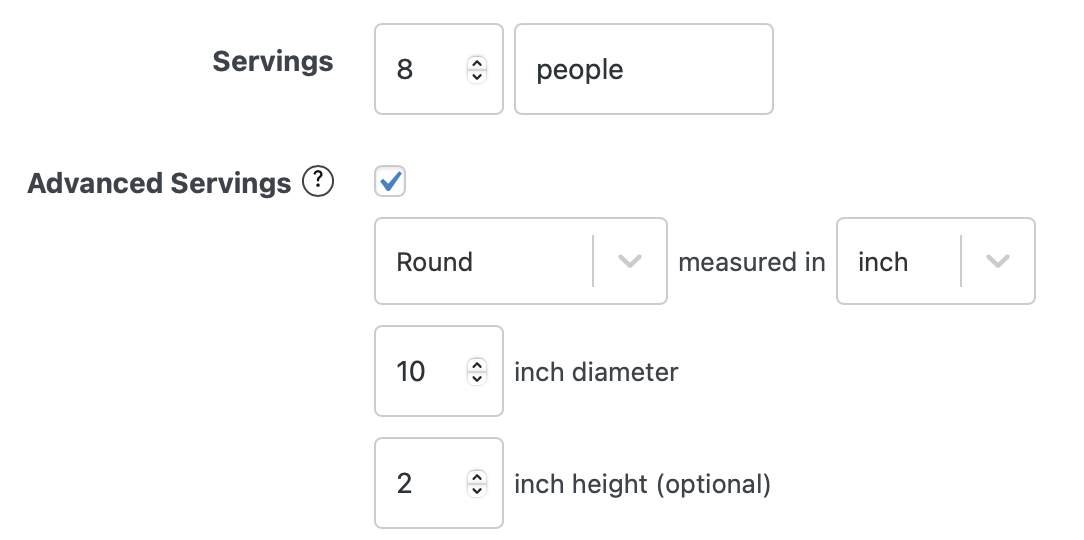
- Set the original Servings amount and unit, such as
8 slices. Use a positive number so the plugin can calculate changes from the original yield. - Enable Advanced Servings.
- Choose Round or Rectangle, and select inch or cm.
- For a round pan, enter its diameter. For a rectangular pan or sheet, enter its width and length. Use positive dimensions matching the pan used for the original recipe.
- Optionally enter the pan height. Leave this blank to scale by surface area; when height is set, changing the height also affects the ingredient calculation.
- Save the recipe.
You can fill in these fields in the free plugin, but the interactive pan changer requires Premium.
Show the pan changer in your template
Section titled “Show the pan changer in your template”Open WP Recipe Maker > Template Editor and edit the template used by your recipe. Use Add Blocks to add the Advanced Adjustable Servings block ([wprm-recipe-advanced-adjustable-servings]) if it is not already present. The block only appears for recipes with Advanced Servings enabled and valid pan dimensions.
Keep an ordinary serving changer in the template as well if you want visitors to choose a yield directly. See Changing the adjustable servings display mode for the available controls.
On the recipe page, visitors can click a dimension to enter their pan size, or click the shape to switch between round and rectangular pans. When switching shapes, they need to fill in the new dimensions before the ingredients can be recalculated.
Visitors can also click the unit to switch between centimetres and inches. This is enabled by default; control it under WP Recipe Maker > Settings > Adjustable Servings > Advanced Adjustable Servings > Unit Conversion.
Suggested pans when the yield changes
Section titled “Suggested pans when the yield changes”Changing the servings also updates the suggested pan dimensions. The suggestion uses the original pan shape and proportions and keeps its height unchanged. Each horizontal dimension scales by the square root of the yield multiplier, so doubling a recipe doubles the pan area.
For example, a recipe for 8 slices baked in a 20 cm round pan suggests a 28 cm round pan when a visitor selects 16 slices. The ingredients double, even though the displayed diameter is rounded to a practical size.
If the visitor enters a different pan size instead, the ingredients and yield are calculated from that pan’s area, or volume when you have supplied a height. Treat the suggested pan as a guide and include any recipe-specific advice about baking time or checking doneness in your instructions.
Rounding and localized dimensions
Section titled “Rounding and localized dimensions”The pan changer and the default pan-size shortcode round displayed dimensions to the nearest whole centimetre or half-inch. For example, an 8.3 inch dimension displays as 8.5 inches. The calculation keeps the underlying dimensions, so this display rounding does not change the ingredient multiplier.
Dimensions use the Decimal Separator setting under WP Recipe Maker > Settings > Adjustable Servings, including the initial display. With a decimal comma selected, 8.5 displays as 8,5. The pan-size shortcode also uses translated unit labels where translations are available.
Show the pan size in instructions
Section titled “Show the pan size in instructions”Use [wprm-pan-size] to keep a pan reference in an instruction in sync with the visitor’s selection:
Grease a [wprm-pan-size] baking pan.While editing an instruction, place the cursor where the dimensions should appear and click the pan icon titled Insert adjustable pan size. This toolbar button is available with Premium. The shortcode has no closing tag.
A round pan displays as Ø 20 cm; a rectangular pan displays as 20 × 30 cm. It shows the diameter or width and length, without the optional height. If Advanced Servings is disabled or the required dimensions are missing, the shortcode outputs nothing.
The default decimals="auto" uses the practical rounding described above. For decimal precision instead, use [wprm-pan-size decimals="2"]; supported numeric precision is 0, 1 or 2 decimal places, with trailing zeros removed. See Recipe Shortcodes for attributes and selecting a specific recipe.
For other numbers that should change directly with the servings, use the adjustable quantities shortcode.