
Template Editor AI Assistant
The AI Assistant is currently in beta and only available to some users Learn more
The Template Editor AI Assistant can suggest changes to the recipe card template you are editing. Instead of figuring out which block, shortcode attribute, or CSS rule to adjust yourself, describe the change you want and let WP Recipe Maker generate a proposed update.
You can use it for changes like adjusting button styles, moving details around, changing labels or spacing, or getting a better starting point for a layout change.
Opening the Template Editor AI Assistant
Section titled “Opening the Template Editor AI Assistant”Go to WP Recipe Maker > Template Editor and open one of your own templates. Default templates cannot be edited directly, so clone a template first if needed.
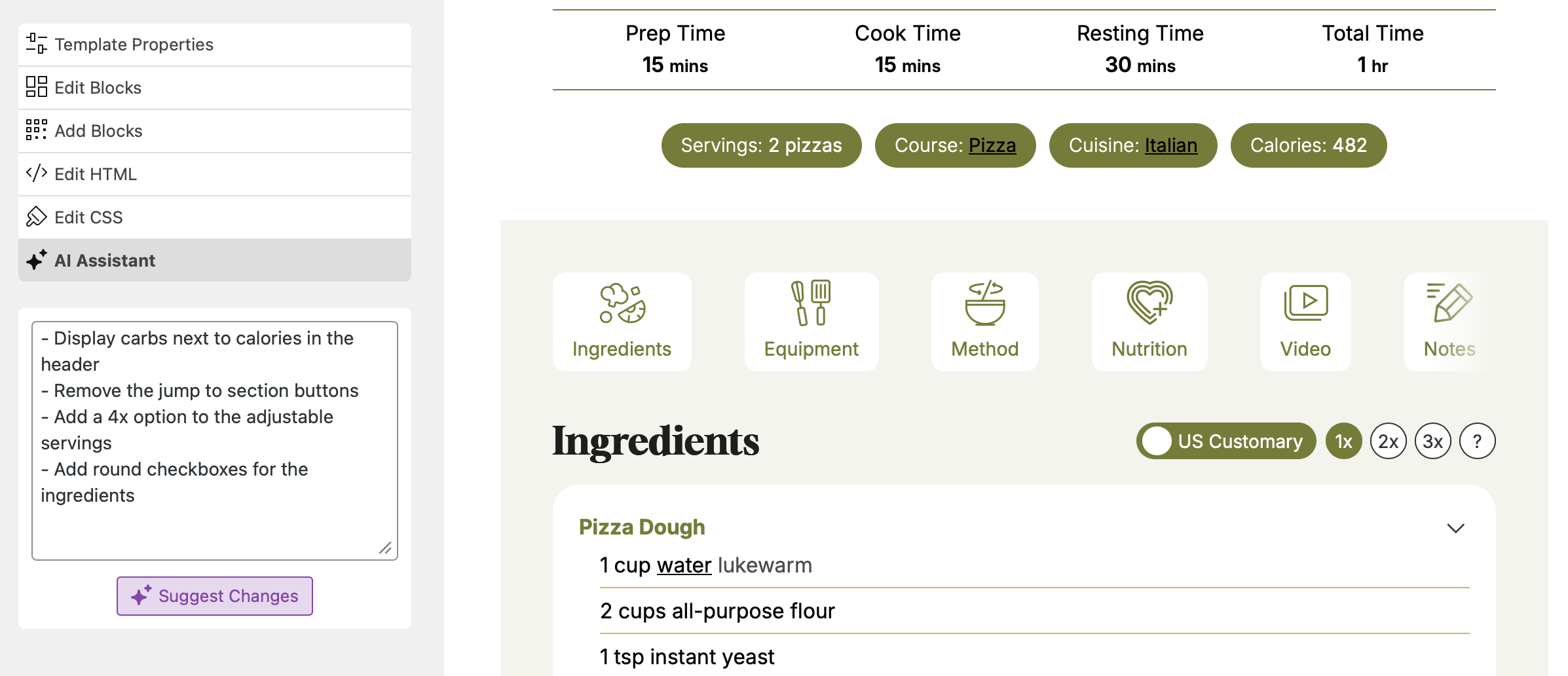
Once you are editing a template, click the “AI Assistant” mode in the Template Editor sidebar. Enter the change you want in the prompt field and click “Suggest Changes”.
Reviewing the Proposal
Section titled “Reviewing the Proposal”The AI Assistant does not immediately save changes to your template. It generates a proposal first so you can review what changed.
Use the “Before” and “After” buttons to compare the current template with the proposed result. If the result looks useful, click “Apply” to put the suggested HTML and CSS into the template you are editing. If it is not what you wanted, click “Discard”.
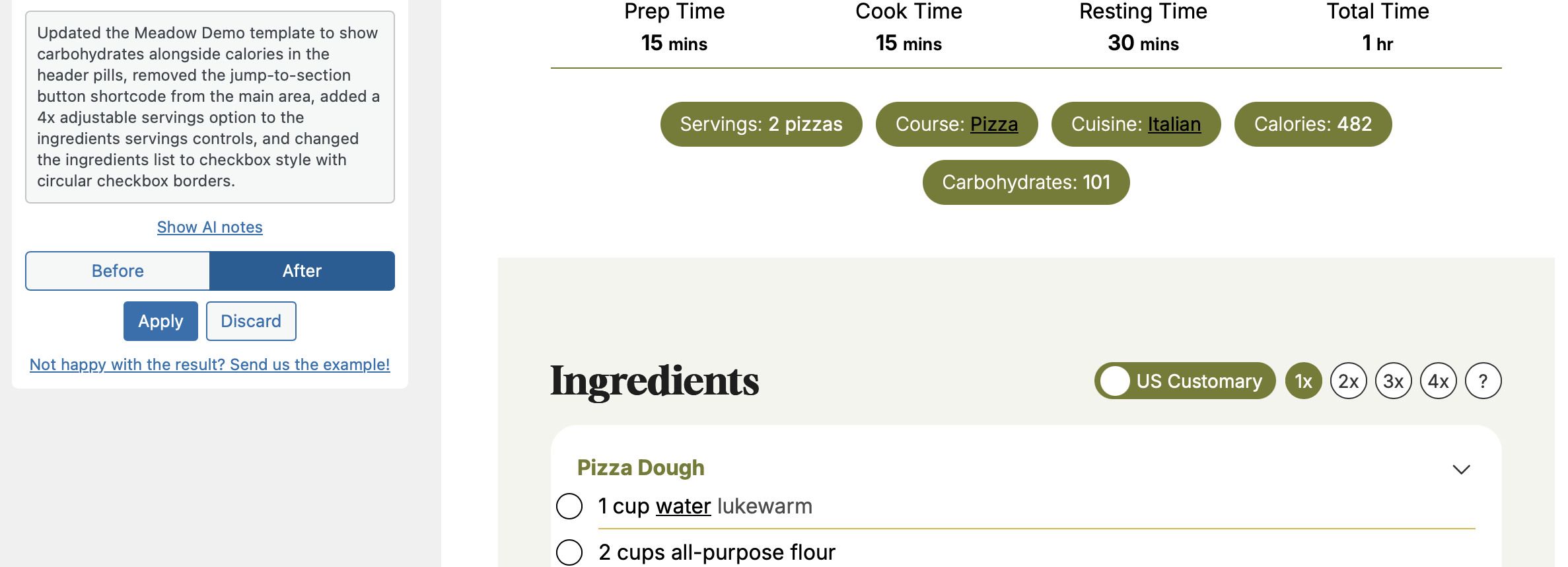
After applying a proposal, save the template like you normally would if you want to keep the change.
How the Proposal Works
Section titled “How the Proposal Works”The AI Assistant tries to achieve the requested result using the available Template Editor structure. That means the proposed HTML and CSS remain editable through the normal Template Editor workflow.
This is still an assistant, not an automatic designer. Always review the proposed result before applying and saving it, especially if your template contains custom HTML, shortcodes, or styling.