
Recipe Snippets
Use the Recipe Snippets to add parts of a recipe or some quick links at the very top of the post. This allows you to give your visitors a teaser for the recipe and quick links to get where they want to be without having to scroll through the entire page.
The snippet template can be fully customized in the Template Editor to match your theme and show the exact fields you want.
Enabling the automatic Recipe Snippets
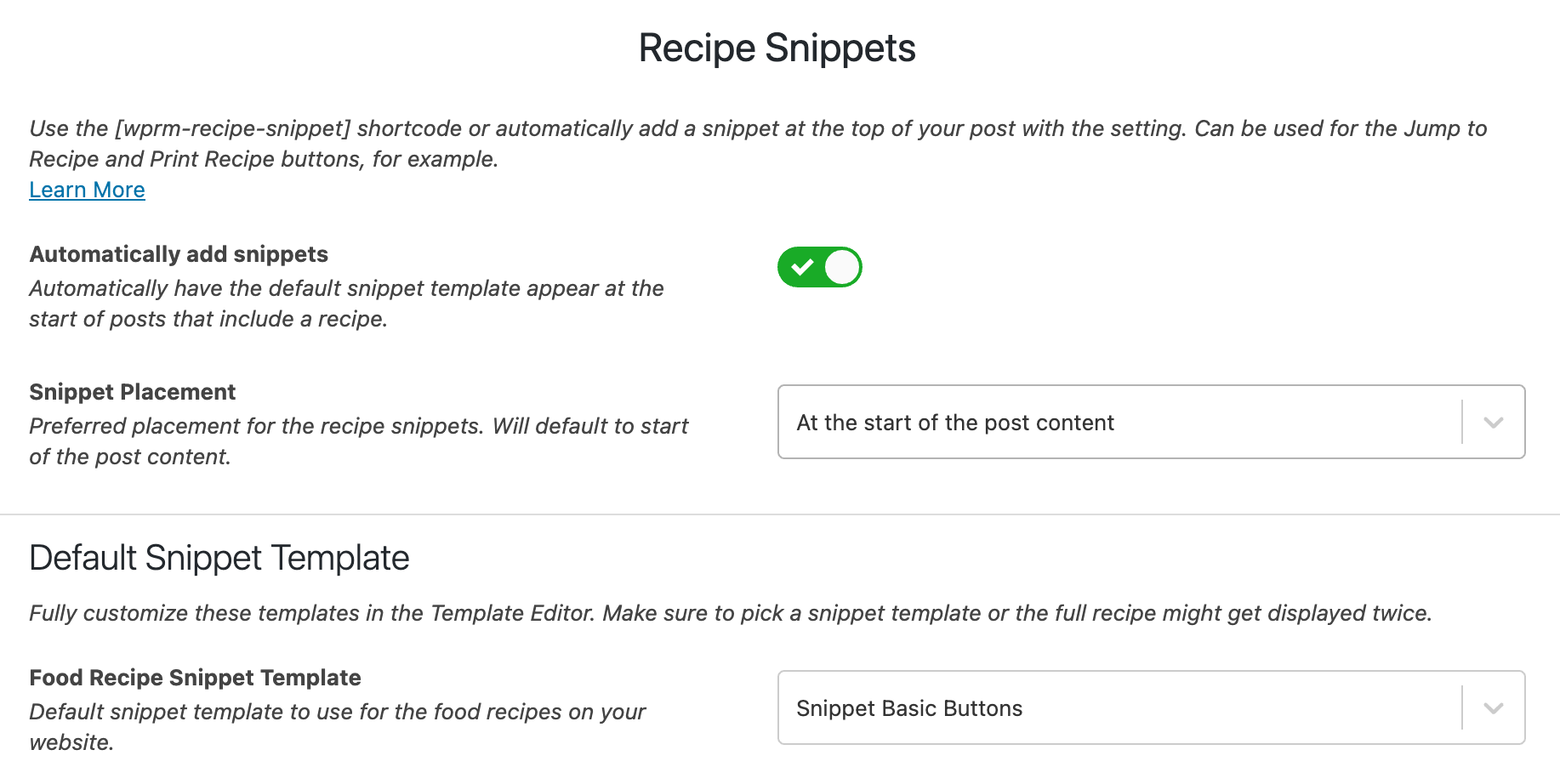
Section titled “Enabling the automatic Recipe Snippets”On the WP Recipe Maker > Settings > Recipe Snippets page you can enable the setting to automatically output the recipe snippets on posts or pages that have a recipe on them. You can also choose a template for them and where to output the snippets. By default this is at the very start of the post content, but after the first paragraph or first image is possible as well.
Different snippets for How-To Instructions
Section titled “Different snippets for How-To Instructions”If you’re using WP Recipe Maker for different recipe types (like how-to instructions), make sure to enable “Show non-food recipe types” on the WP Recipe Maker > Settings > Recipe Template page.

Once you do that, you’ll be able to pick a different snippet template for different recipe types as well.
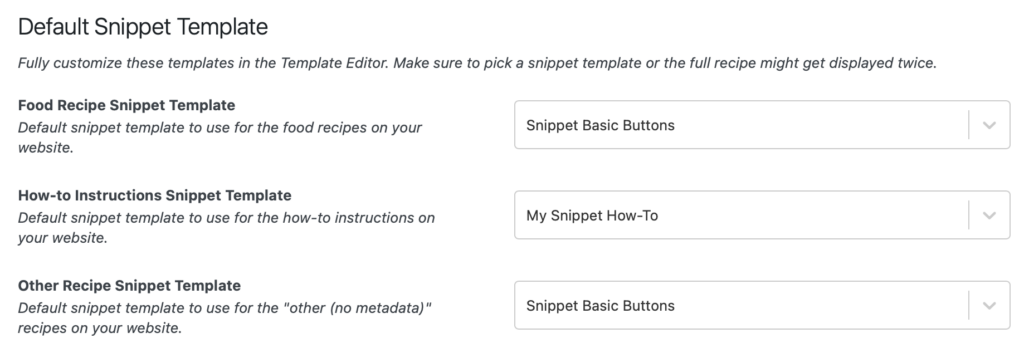
Snippets are completely editable in the Template Editor, so you can start by cloning the snippet template you’re using for food recipes, give it a different name (like “My Snippet How-To” in the screenshot) and edit the blocks to change the text. As soon as you then change the default snippet template setting, it will use that new template for all how-to instructions.
Editing the Snippet Template
Section titled “Editing the Snippet Template”To learn more about editing the snippet template, check out our documentation on the Template Editor. Just like the recipe card, the snippet template is completely editable as well. For a step by step, focussing on recipe snippets, check out this documentation: Removing the Print Recipe button from the snippet at the top of a post
Manually adding Recipe Snippets
Section titled “Manually adding Recipe Snippets”You can manually add the recipe snippets wherever you want on the page by typing the [wprm-recipe-snippet] shortcode. It will use the template you’ve set on the WP Recipe Maker > Settings > Recipe Snippets page.
They will automatically work with the first recipe found on the page or you could set a specific recipe ID as well.
Check out our shortcode overview for more information.
I’m seeing the full recipe card twice
Section titled “I’m seeing the full recipe card twice”If you’re using snippets (by example, by enabling “Automatic Snippets” as shown above), it will output the default snippet template you have defined on the WP Recipe Maker > Settings > Recipe Snippets page. Make sure you actually have a snippet template selected there. If you accidentally select a regular recipe template (like “Chic”), you’re full recipe card will be appearing twice: once at the top, and once inside the post content.