
Setting your own YouTube Data API key
WP Recipe Maker uses the YouTube Data API to retrieve details for recipe videos embedded from YouTube. By default, it uses a shared API key. You can set your own key to use your Google project’s quota instead, which can help if the shared key reaches its daily limit.
A personal key does not guarantee complete metadata: the video must be available to the API, and lookup and saving must both succeed.
Creating your own YouTube Data API key
Section titled “Creating your own YouTube Data API key”- Sign in to the Google Cloud Console and create or select a project.
- Open APIs & Services > Library, find YouTube Data API v3 and enable it for that project. See YouTube’s getting-started guide.
- Open APIs & Services > Credentials, choose Create credentials > API key, and restrict it to YouTube Data API v3. Create a standard key, without binding it to a service account, and copy its key string. See Google’s API key instructions.
WP Recipe Maker uses an API key for public video details; you do not need an OAuth client or consent screen for this lookup. YouTube’s authorization guide explains OAuth access to private user data.
Keep the key private and apply suitable application restrictions. WP Recipe Maker sends the request from your WordPress server. If using IP addresses restrictions, ask your host for the server’s outbound public IP addresses; your computer’s IP address is not the caller. See Google’s application restriction guidance.
Setting your own YouTube Data API key
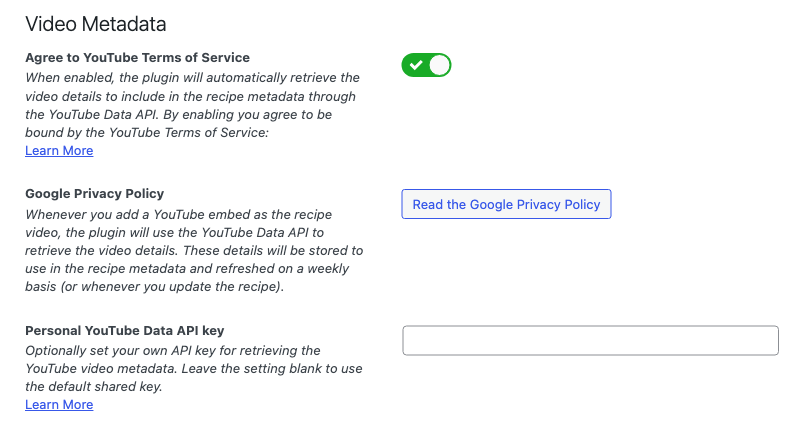
Section titled “Setting your own YouTube Data API key”Go to WP Recipe Maker > Settings > Recipe Metadata > Video Metadata, paste the key into Personal YouTube Data API key, and save the settings. Leave this field blank to use the default shared key.
The Agree to YouTube Terms of Service setting must be enabled for YouTube Data API lookup. It is enabled by default; review the linked terms before enabling it if you previously disabled it.
Refreshing the Video Metadata
Section titled “Refreshing the Video Metadata”After changing the key, request fresh metadata and verify an affected recipe:
- Go to WP Recipe Maker > Tools and click Refresh Video Metadata. This starts scheduling background refreshes.
- Wait for scheduling to finish, then click Check refresh status. The progress bar reaching 100% does not mean metadata has been saved for every recipe.
- To check one recipe directly, enter its Recipe ID and click Refresh this recipe now. This is available to administrators who can edit that recipe. It runs one refresh in the current request, verifies storage, and can take a while. An active refresh is not interrupted.
- Review the recipe’s status and details. completed confirms the refresh was saved; saved on a subsequent check means saved metadata is available with no refresh pending. For a failure, review Last failure and Retry planned (UTC). If a request times out, check status before retrying.
- After a successful refresh, clear your page cache and test the public recipe post with Google’s Rich Results Test.
See Refreshing Video Metadata for background status and recovery details. Normally, video metadata is refreshed in the background weekly or when the recipe is updated. Even a successful save does not guarantee that YouTube returned every field or interaction count.
Troubleshooting your Personal API Key
Section titled “Troubleshooting your Personal API Key”Start with the refresh report to distinguish a background dispatch problem from a YouTube lookup problem. A personal API key will not fix WordPress cron, loopback, network or metadata storage failures.
For YouTube lookup failures, check:
- API access: the key belongs to the intended project, YouTube Data API v3 is enabled there, and the key’s API restrictions allow it.
- Application restrictions: they allow requests from your WordPress server. WP Recipe Maker sends your site’s home URL as the
Refererheader; if you use website restrictions, make sure the allowed pattern matches that URL. - Quota: review usage and errors for YouTube Data API v3 in Google Cloud Console. A personal key still has a quota; see YouTube’s quota guidance.
- Video availability: confirm that the video URL is correct and that the video is still available. An API key does not grant access to private videos.
- Reported errors: use the HTTP status and provider code in Last failure, when available, with YouTube’s API error reference.
Fix the reported cause, then refresh the affected recipe again and check its saved result. Avoid sharing your key in screenshots or support messages.