
Display nutrition facts per column for your collections
Recipe Collections requires the Elite Bundle. On the WP Recipe Maker > Settings > Recipe Collections page, open the Nutrition Facts section and turn on Enable button to show nutrition facts. This is off by default.
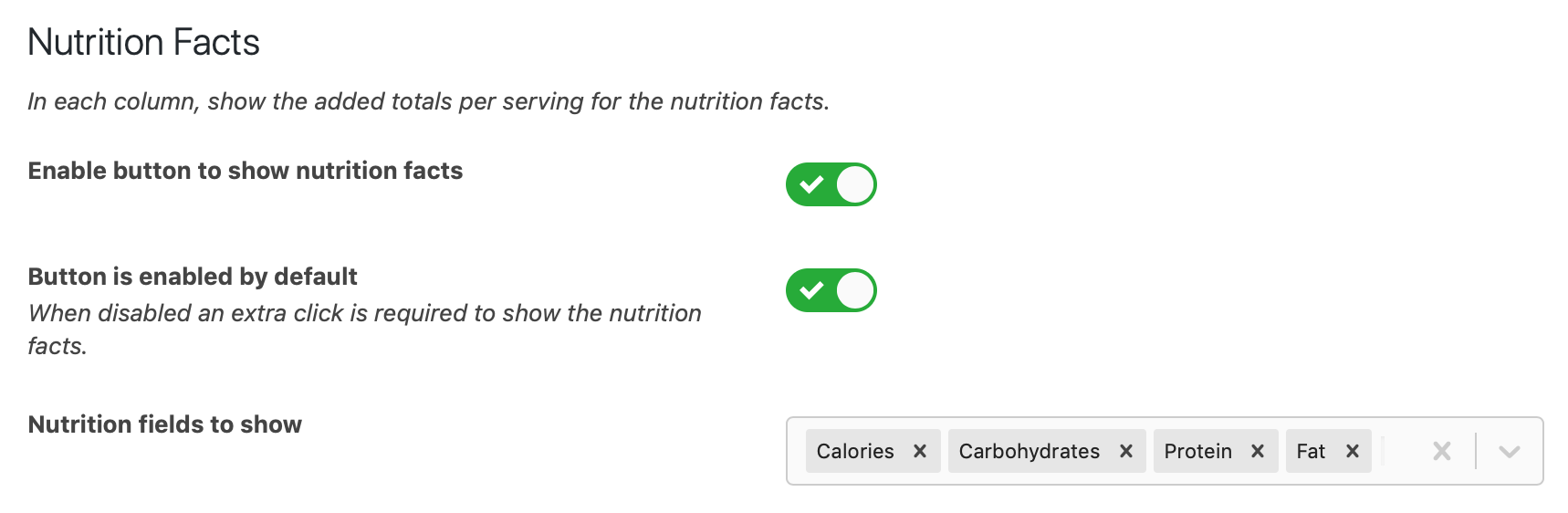
Choose the nutrients under Nutrition fields to show. The defaults are calories, carbohydrates, protein and fat. Button is enabled by default controls whether the nutrition facts are visible immediately; when off, visitors click the button to show them.
Choose how column totals are calculated
Section titled “Choose how column totals are calculated”The Nutrition Facts Totals setting offers two options:
- Show totals per serving (the default) adds the stored nutrition for one nutritional portion of each recipe in the column. Increasing a recipe’s selected quantity does not multiply its contribution in this mode. A recipe with a selected quantity of 0 contributes nothing.
- Show totals including all servings multiplies each recipe’s per-portion nutrition by the number of nutritional portions represented by its selected quantity, then adds the results for the column.
Recipes with a separate nutrition portion count
Section titled “Recipes with a separate nutrition portion count”A recipe can have an optional Nutrition Servings count in its Nutrition section. This is separate from General > Servings, which describes recipe yield. See nutrition portions and recipe yield for setup.
For example, a recipe can yield 1 cake and have Nutrition Servings set to 12, with stored nutrition describing one slice. The quantity selected in a collection is still in the recipe’s yield unit: 1 cake, 2 cakes or 0.5 cake.
With Show totals including all servings, collections count portions as:
Nutrition Servings × selected recipe quantity ÷ original recipe Servings
If each slice has 100 kcal, this recipe contributes:
- 1 cake: 12 slices, totaling 1,200 kcal.
- 2 cakes: 24 slices, totaling 2,400 kcal.
- 0.5 cake: 6 slices, totaling 600 kcal.
With Show totals per serving, the same recipe contributes 100 kcal for one slice at each of those quantities. This is a sum of one portion from each recipe, rather than an average of the whole column.
If Nutrition Servings is empty or invalid, all-servings totals retain the existing behavior: stored per-serving nutrition is multiplied by the selected recipe Servings count. Shopping list ingredient quantities continue to scale with the recipe yield.
Keep the stored nutrition accurate
Section titled “Keep the stored nutrition accurate”Changing or clearing Nutrition Servings does not overwrite or recalculate stored nutrition. Collections use the currently stored values and portion count, so review and update the recipe’s nutrition before relying on new totals. With the Elite Bundle, explicitly run Calculate Nutrition Facts and apply the results, or update manually entered per-portion values.
Serving Size and its unit describe one portion, such as 1 slice or 50 g; they do not supply the number of portions for collection totals. Setting the recipe’s nutrition label to per 100g changes that label’s display. Collection totals still use the stored per-portion nutrition.