Google Analytics 4 Event Tracking
On the WP Recipe Maker > Settings > Analytics page, turn on Enable GA Tracking to send recipe interactions to Google Analytics 4. This setting is off by default and works independently of Enable Analytics, which controls local Recipe Analytics.
Google Analytics must already be loaded on your site through gtag.js. WP Recipe Maker sends events to that existing setup; it does not install or load Google Analytics.

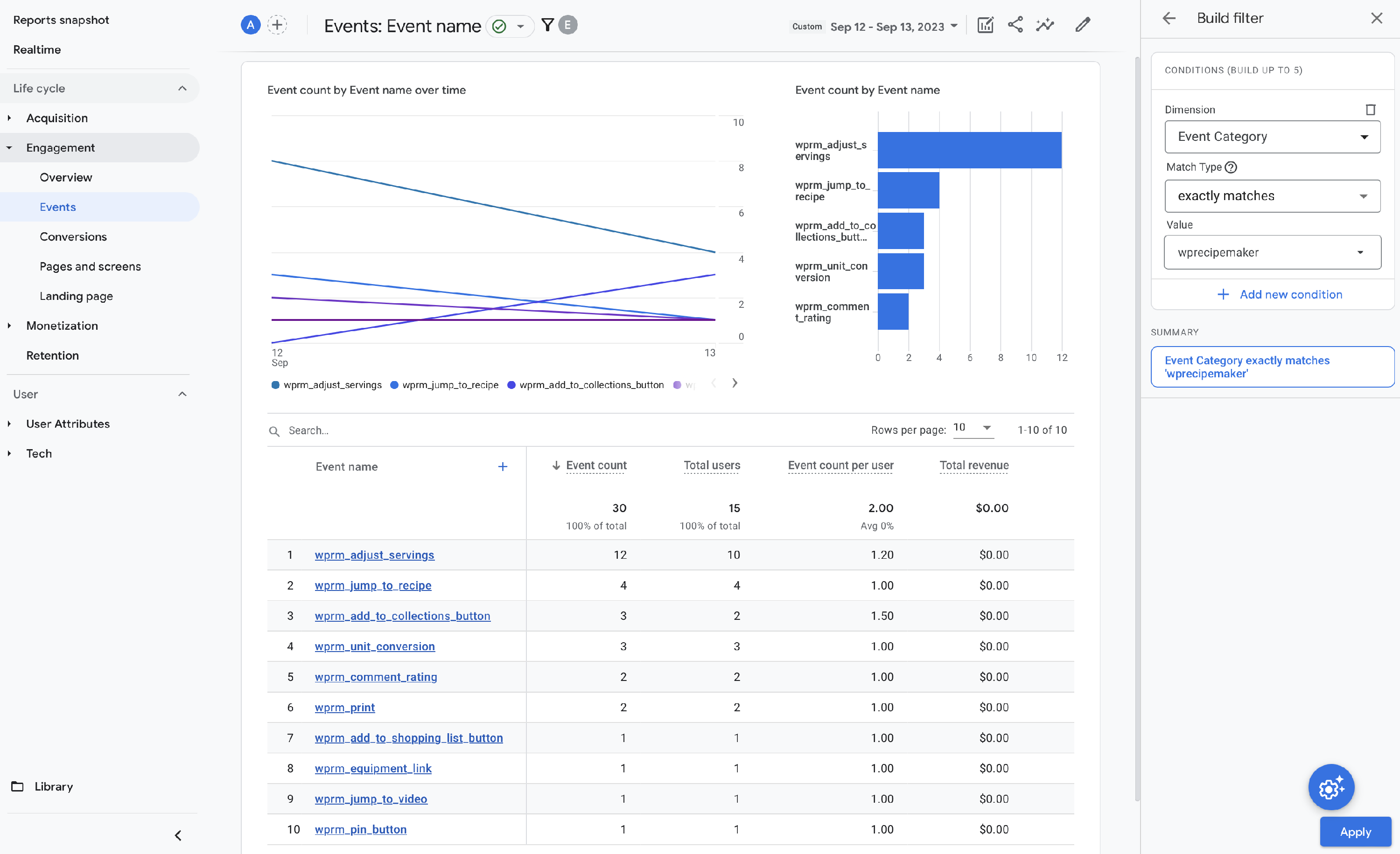
When you do, the recipe interactions will be passed along to your Google Analytics as events. All events will be under the “wprecipemaker” event category and start with wprm_ to easily identify them.
Google Preferred Sources Button Clicks
Section titled “Google Preferred Sources Button Clicks”The Google Preferred Sources button sends the event wprm_google_preferred_sources_button. Both Official Google Button and Custom WPRM Button display modes are supported.
The event includes wprm_recipe_id, wprm_post_id and wprm_event_mode (official or custom). When the button is inside a recipe card, the recipe ID identifies that recipe. A standalone shortcode outside a recipe card sends wprm_recipe_id as 0; WPRM’s frontend scripts must be loaded on that page for tracking to run.
The event records the click, not confirmation that the visitor added your site as a preferred source. It can be sent without local tracking enabled and does not require a WPRM Kitchen connection.
Existing Google Analytics Setup
Section titled “Existing Google Analytics Setup”Take note that WP Recipe Maker will not be loading Google Analytics on your site. Event tracking can only work if gtag.js is already on your site.
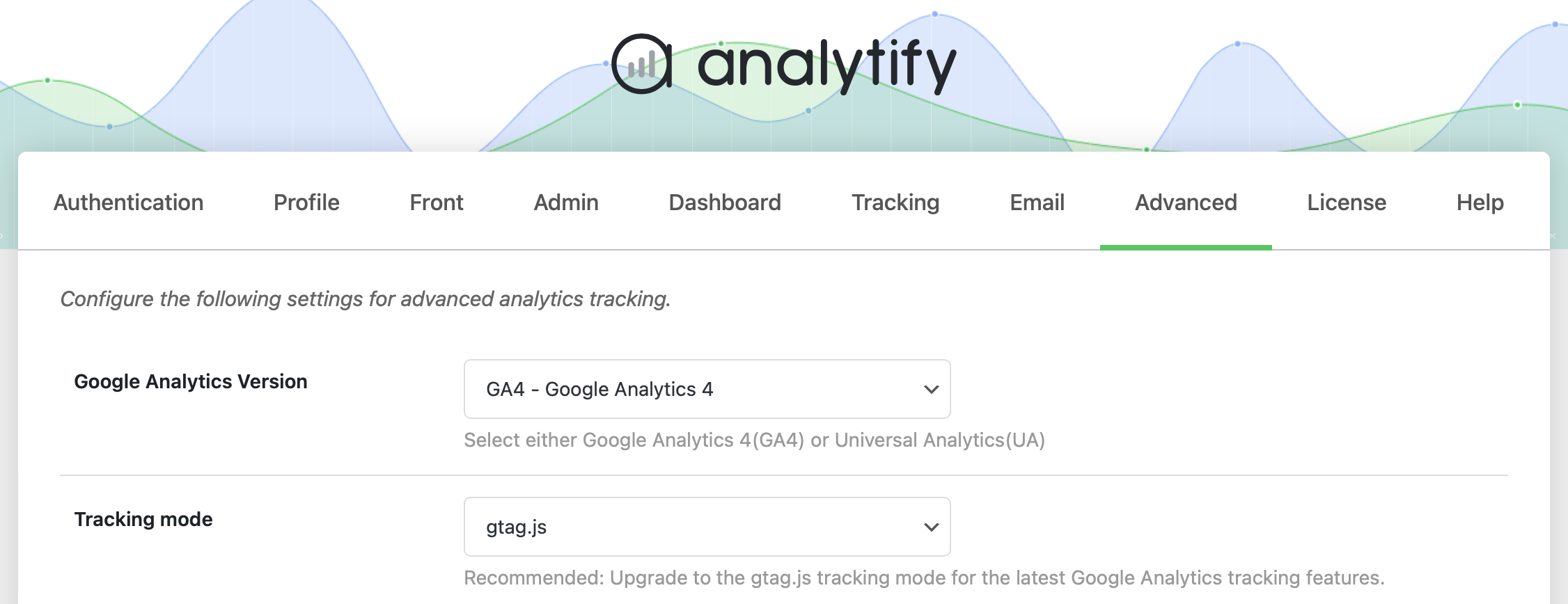
There are several plugins that can do this for you, however. We use Analytify for our own sites and made sure “Tracking Mode” is set to “gtag.js” on their Advanced settings page: