
Recipe Analytics
On the WP Recipe Maker > Settings > Analytics page, turn on Enable Analytics under Local Tracking to record recipe interactions in your WordPress database. This setting is off by default. Local tracking works independently of Google Analytics and a WPRM Kitchen connection.
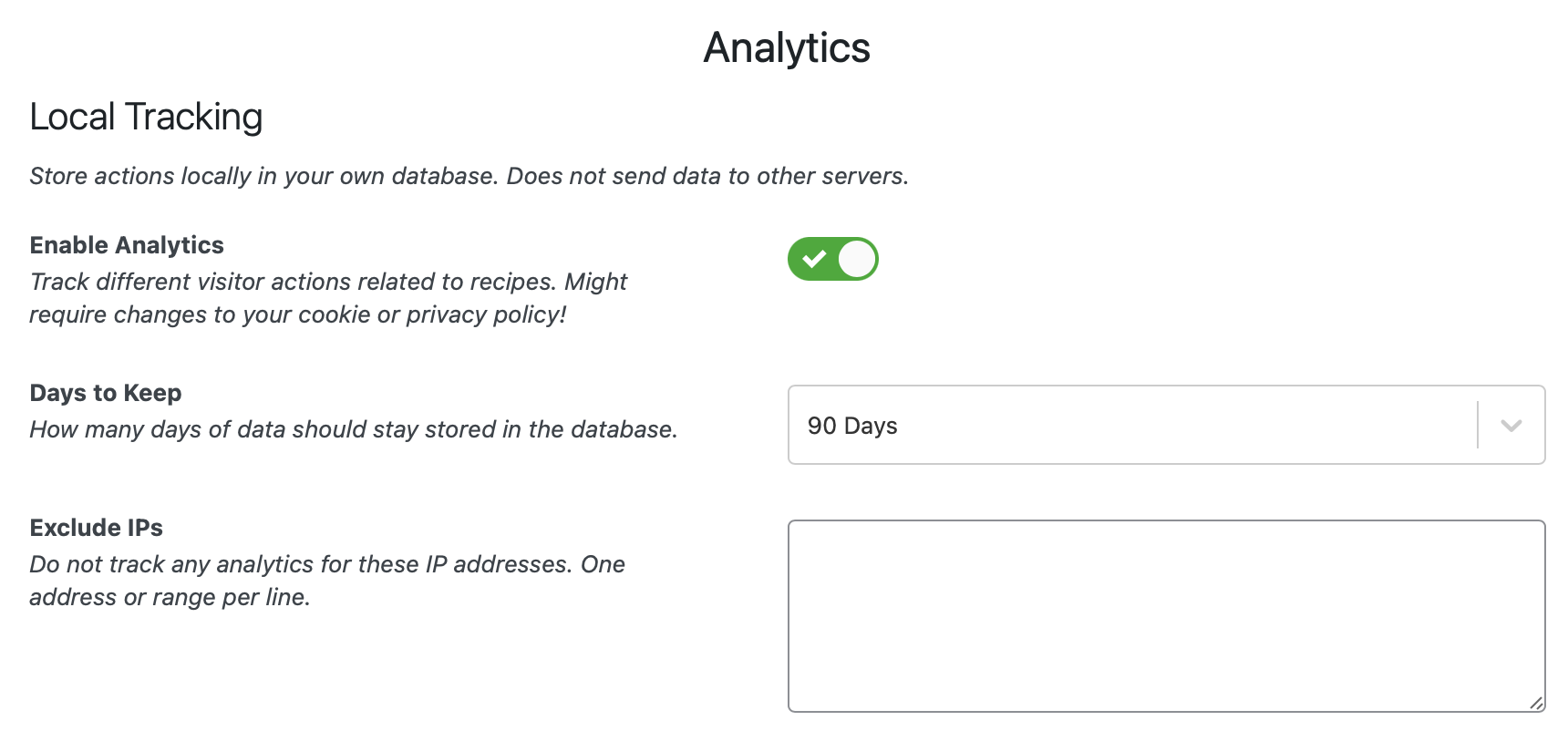
What this does is track different interactions that your visitors can have with recipes: clicking the jump to recipe button, printing a recipe, rating a recipe, adjusting servings or unit system, …
Clicks on the Google Preferred Sources button are tracked as Google Preferred Sources Button (google-preferred-sources-button). Both the official Google button and the custom WPRM button are supported. For local tracking, the button must be inside a recipe card so the click can be assigned to that recipe. A standalone button outside the card can be tracked through Google Analytics instead.
This interaction counts a button click. It does not confirm that the visitor completed Google’s flow or added your site as a preferred source.
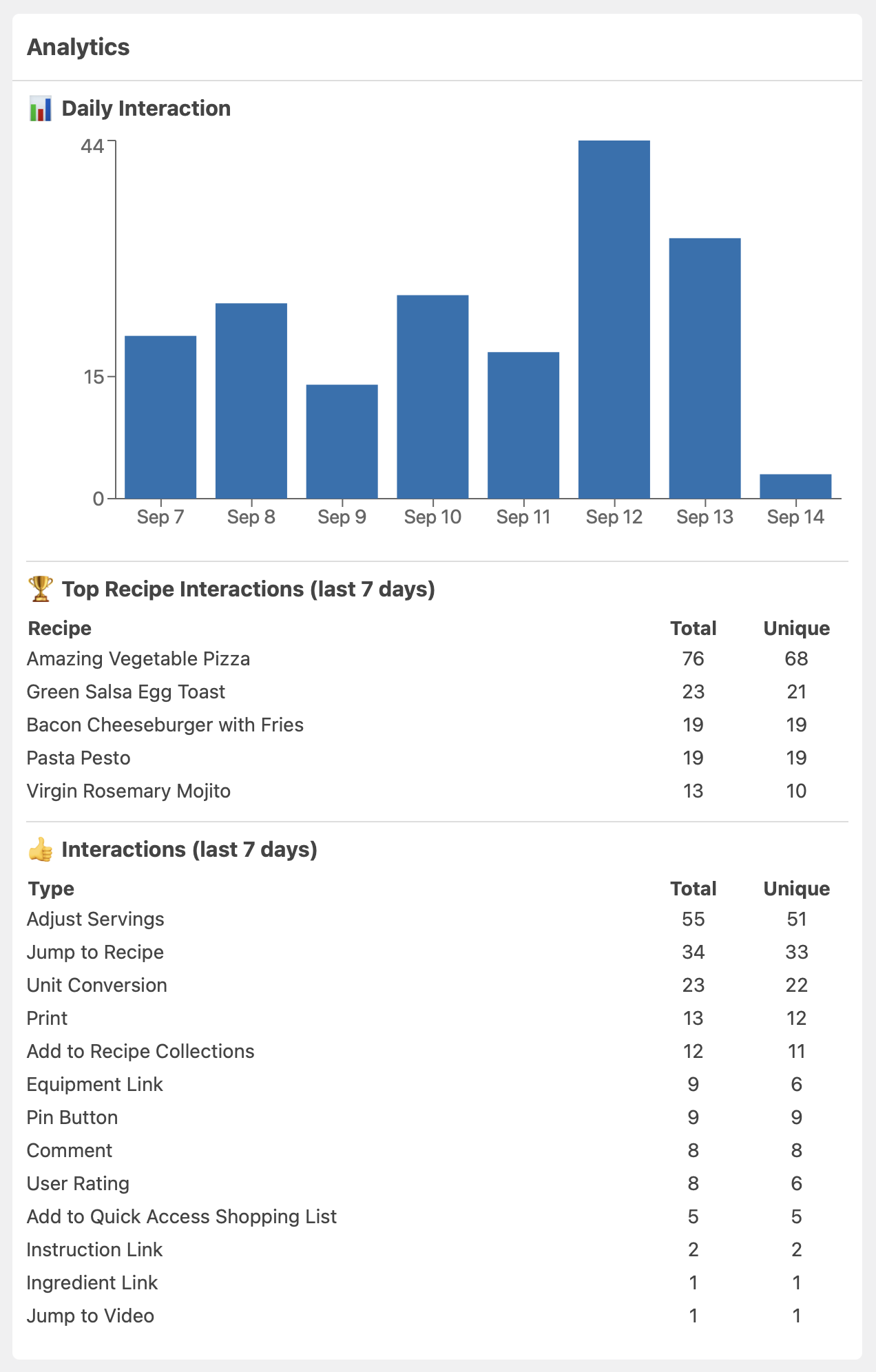
Once enabled, you’ll find some charts displaying that data on the WP Recipe Maker > Dashboard page:
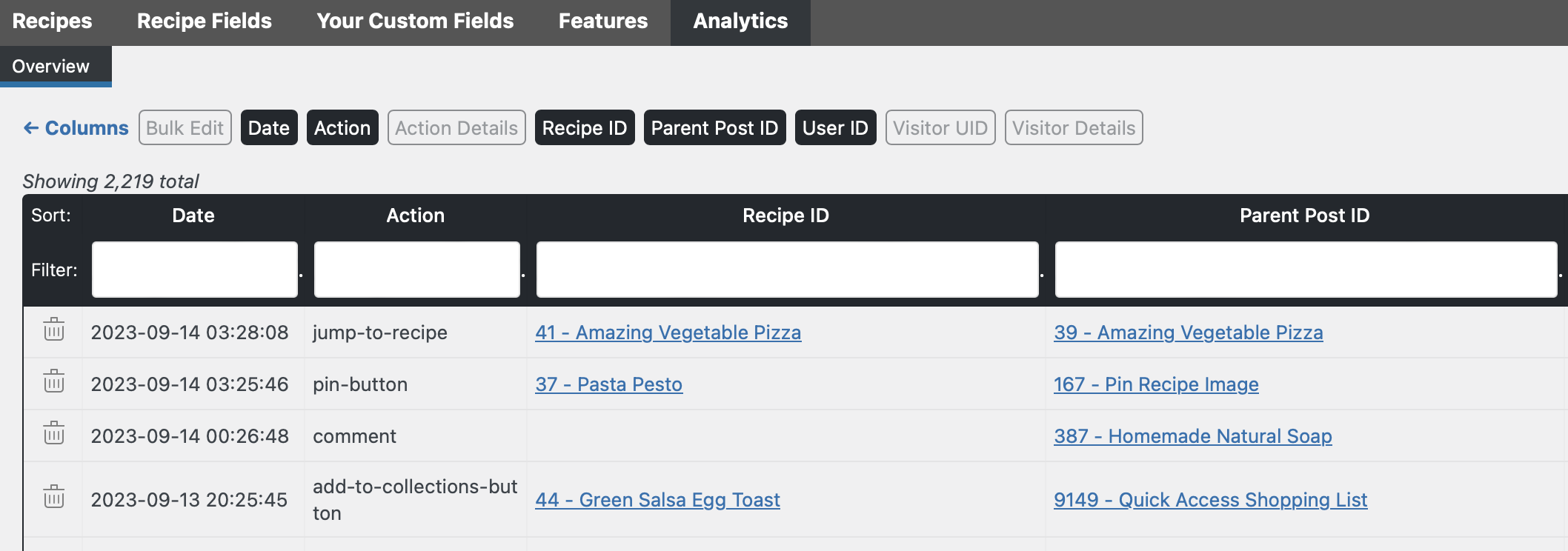
The raw data for this can be viewed on the WP Recipe Maker > Manage > Analytics page as well.
Syncing Analytics to WPRM Kitchen
Section titled “Syncing Analytics to WPRM Kitchen”Connecting your site to WPRM Kitchen authorizes syncing daily aggregate counts for supported analytics actions, grouped by recipe, post and action. WP Recipe Maker Premium must be active, and Enable Analytics must be on for Kitchen to access locally collected analytics. Connection management is available on free sites, but recipe and analytics access requires Premium.
Kitchen receives aggregate action counts. Individual events, visitor identifiers, IP addresses and user agents stay in WordPress. These counts measure recorded interactions; they are not unique visitor counts or proof that a visitor completed an action such as printing or saving.
The Google Preferred Sources Button interaction is tracked locally and in GA, but is not included in Kitchen’s daily aggregate export.
Enabling local tracking by itself stores data on your site. Connecting Kitchen adds cloud syncing; there is no separate analytics sync toggle. Kitchen uses the locally retained data, so your Days to Keep, Exclude IPs and Exclude Actions settings affect what is available. The default retention is 90 days.
Use Disconnect in the Kitchen connection controls to revoke Kitchen’s site access and stop syncing. Disconnecting does not turn off Enable Analytics: local tracking continues while that setting is enabled. See the WPRM Kitchen guide for connection and disconnection instructions.
Recipe Interactions Report
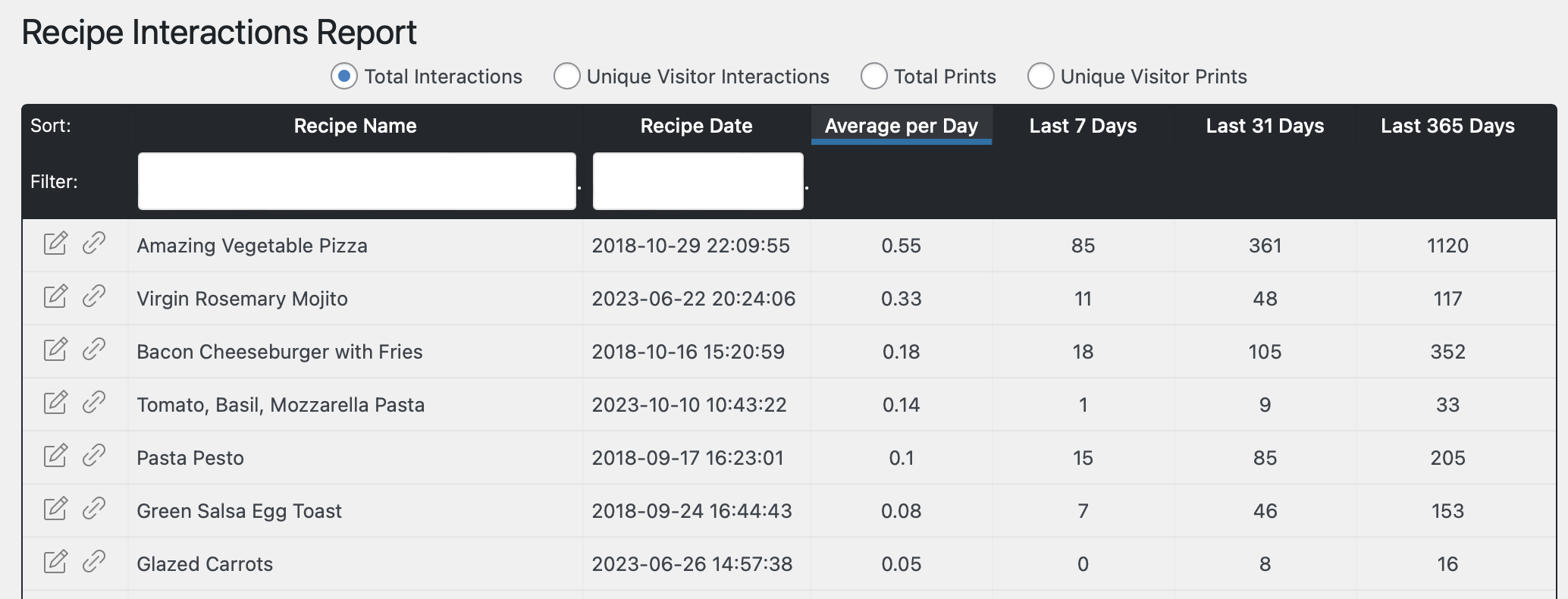
Section titled “Recipe Interactions Report”To learn more about interactions and find out which of your recipes are most interacted with, check out the WP Recipe Maker > Reports page. Once you generate the interactions report you’ll get an overview of the interactions per recipe:
Displaying Analytics in a Recipe Template
Section titled “Displaying Analytics in a Recipe Template”You can display an interaction count directly in a recipe card using the Analytics block:
- Go to WP Recipe Maker > Template Editor and edit the recipe template you want to change.
- Click on “Add Blocks” and add the “Analytics” block where you want the count to appear.
- Adjust the block options and save the template.
The Template Editor uses an example count in its preview. For the block to output a count on the live site, Local Tracking of Recipe Analytics must be enabled on the WP Recipe Maker > Settings > Analytics page.
Analytics Block Options
Section titled “Analytics Block Options”- Interaction Type: Choose the interaction to count, such as Print, Adjust Servings, User Rating, Jump to Recipe or Google Preferred Sources Button.
- Metric: “Total Interactions” counts every recorded interaction of the selected type. “Unique Visitor Interactions” counts each tracked visitor once within the selected period.
- Days: Set the number of days to count, including today. Use
0to count all data still stored according to your Analytics retention setting. - Text: Customize the output and use
%count%where the formatted count should appear. For example,%count% visitors printed this recipe. - Hide Zero: Enable this to output nothing when the count is zero.
- Text Style: Change the visual style of the text, such as its weight, size, casing or emphasis.
- HTML Tag: Choose the HTML element that wraps the output, from
spananddivto the heading tagsh1throughh6.
Using the Shortcode
Section titled “Using the Shortcode”The Analytics block uses the [wprm-recipe-analytics] shortcode. Like other Recipe Block shortcodes, it can also be used outside the Template Editor. The easiest way to build it with the attributes you need is the Shortcode Generator on the WP Recipe Maker > Template Editor page.
For example:
[wprm-recipe-analytics type="print" metric="unique" days="30" text="%count% visitors printed this recipe" hide_zero="1"]This displays the number of unique tracked visitors who printed the recipe during the last 30 days and hides the output when that count is zero.
Recipe Analytics can therefore be viewed in the dashboard charts and interactions report, inspected as raw data, or displayed directly in a recipe template with the Analytics block.
Alternatively, you could also enable the Google Analytics 4 Event Tracking to get the same interactions as events in Google Analytics.