
eCommerce Products
If you are running your own eCommerce store on the same website as WP Recipe Maker, you can link equipment and ingredients to the products you’re selling and make them shoppable with a simple click. These eCommerce solutions are currently supported: WooCommerce. Let us know if you need an integration with a different solution.
Linking Equipment/Ingredients to Products
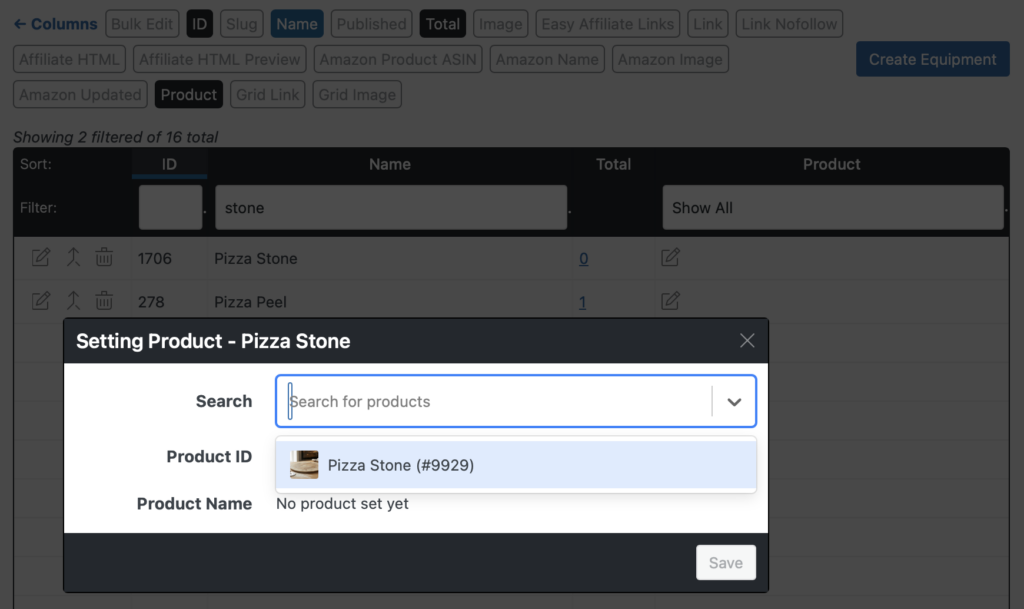
Section titled “Linking Equipment/Ingredients to Products”On the WP Recipe Maker > Manage > Recipe Fields > Equipment/Ingredients pages you can enable the “Product” column through “Change Columns” at the top of the screen. Once you do, you will be able to click the edit icon to link a particular item to a product that you’re selling by searching for it.
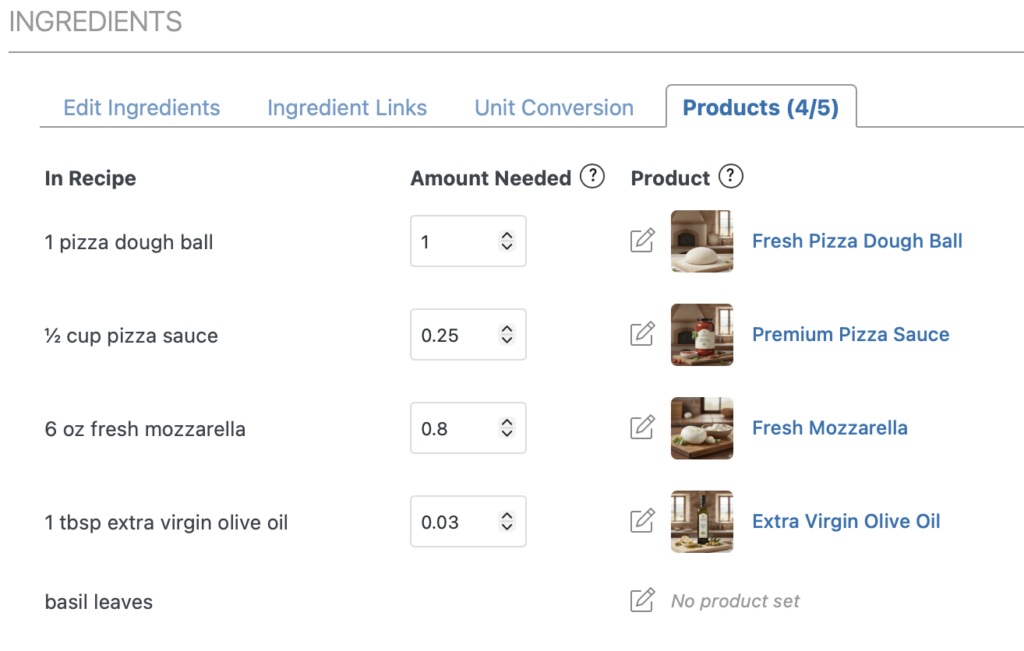
You have the same option when creating/editing a recipe through the backend as well. In the “Equipment” or “Ingredients” section you should find a new “Products” tab. In the title of that tab you can see how many products are actually linked (4 of the 5 ingredients are linked in the example below) and you can use the edit icon to link an item to a product.
By default, the product will not show up in the recipe card until you’ve actually set the “Amount Needed” value. This value should be set to how much of a particular product is needed for the amount of the ingredient that’s used.
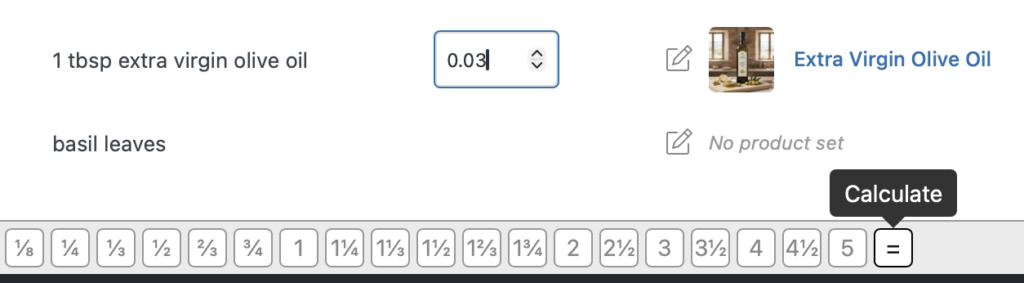
For example, with the pizza dough ball, you need exactly 1 dough ball for the recipe, so that can just be set to “1”. The sauce that we’re selling contains 2 cups of sauce, however, so only “1/4” or “0.25” of the product is actually needed to make this recipe. Use the toolbar at the bottom of the modal for quick access to some common values and a calculate icon where you can use calculations to make it easy to get the “Amount Needed” value.
The reason for filling in this value correctly is compatibility with our adjustable servings feature. Let’s say someone loves our Quick & Easy Pizza demo recipe and wants to make 20 pizzas for a party. The adjustable servings feature allows them to get the correct ingredient amounts, and because we’ve filled in the “Amount Needed” field correctly, they can also immediately shop the correct amount to make the recipe:
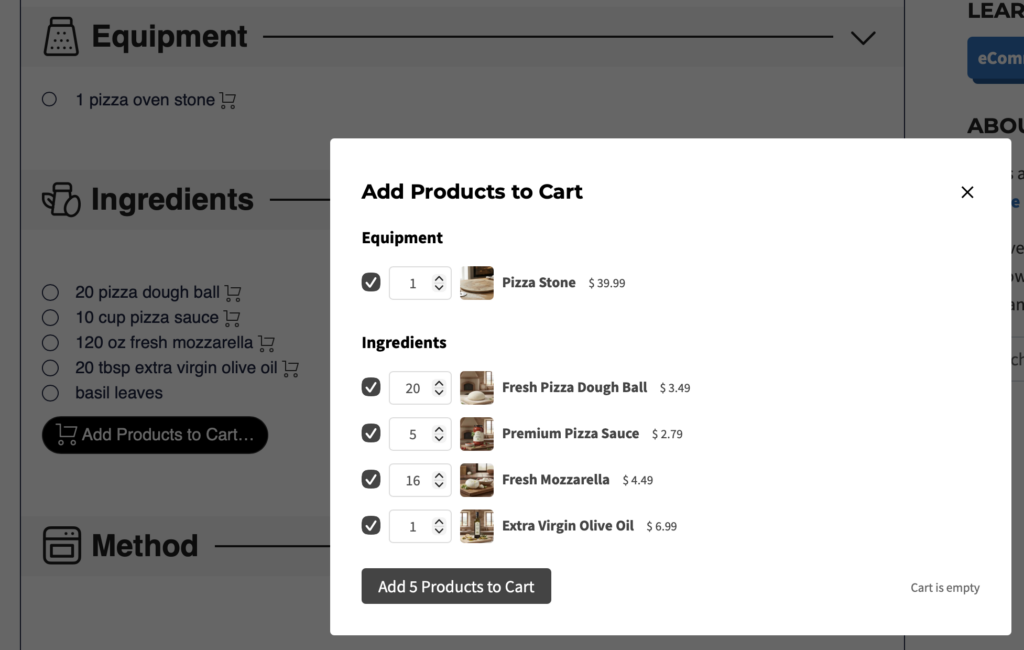
We need 10 cups of pizza sauce for the recipe now, and it correctly offers them to buy 5 of the 2-cup sauce pots. And even though the recipe now needs 20 tablespoons of olive oil, it knows that just 1 bottle will still suffice.
So it’s very important to fill in the “Amount Needed” value correctly. If you’d just entered “1” for the olive oil, the product would show up, but it would then also suggest purchasing 20 bottles if someone had adjusted the servings, leading to customer frustration.
Showing Add to Cart Buttons
Section titled “Showing Add to Cart Buttons”Use the section above to find out how to link products to equipment/ingredient items and then also make sure to fill in the “Amount Needed” per recipe. Only when “Amount Needed” is filled in will the products actually show up.
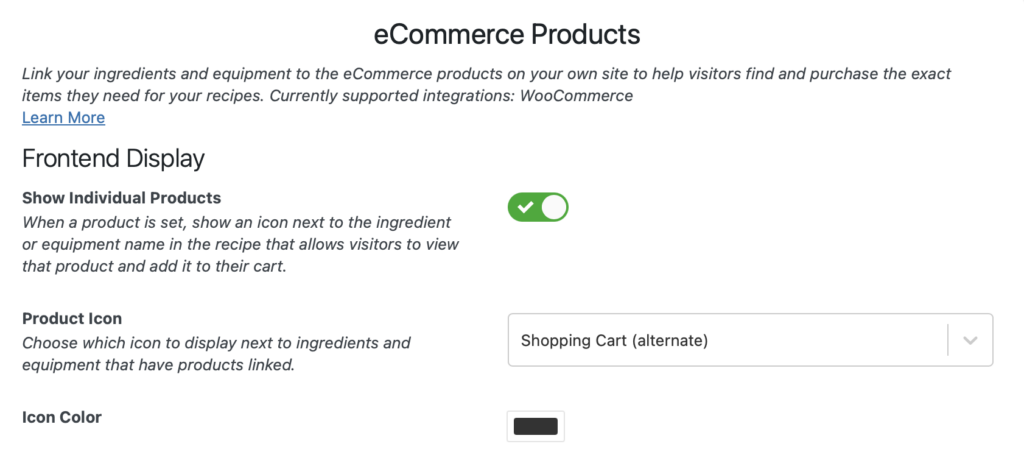
On the WP Recipe Maker > Settings > eCommerce Products there’s a settings that can be toggle to show the individual products next to the equipment or ingredient line, with the possibility to change the icon and color.
In our Template Editor it’s also possible to add the “Add Products To Cart”, which can be used be visitors to add all products that are part of the recipe at once. Go to “Add Blocks” to insert it anywhere in your recipe card:
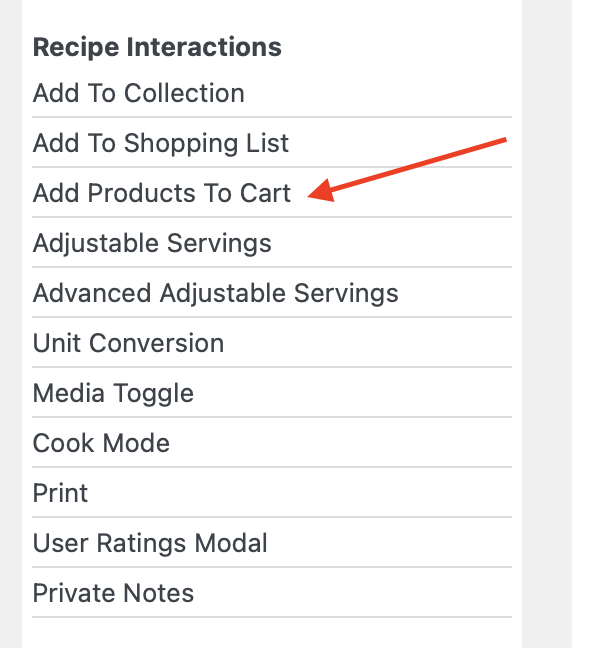
Alternatively, it can also be enabled as part of the existing “Recipe Equipment” or “Recipe Ingredients” blocks.