Inline Ingredients
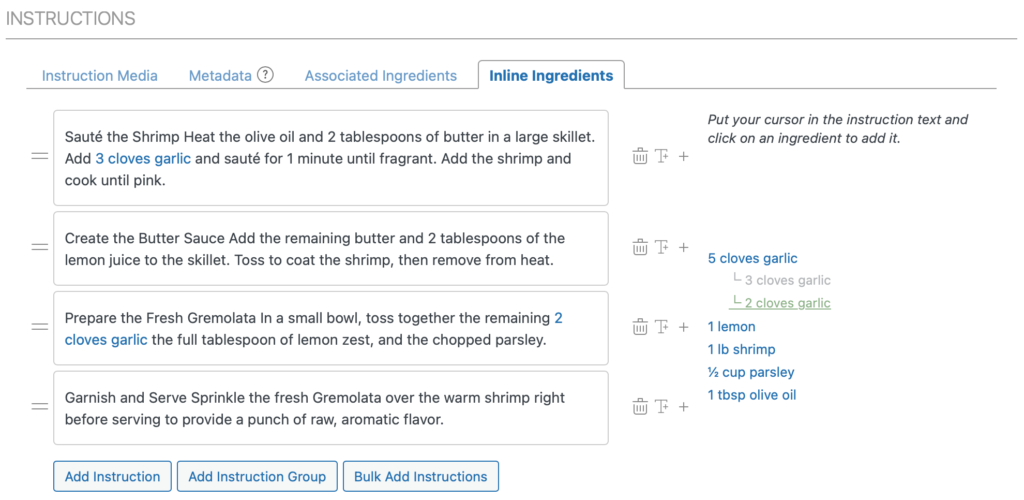
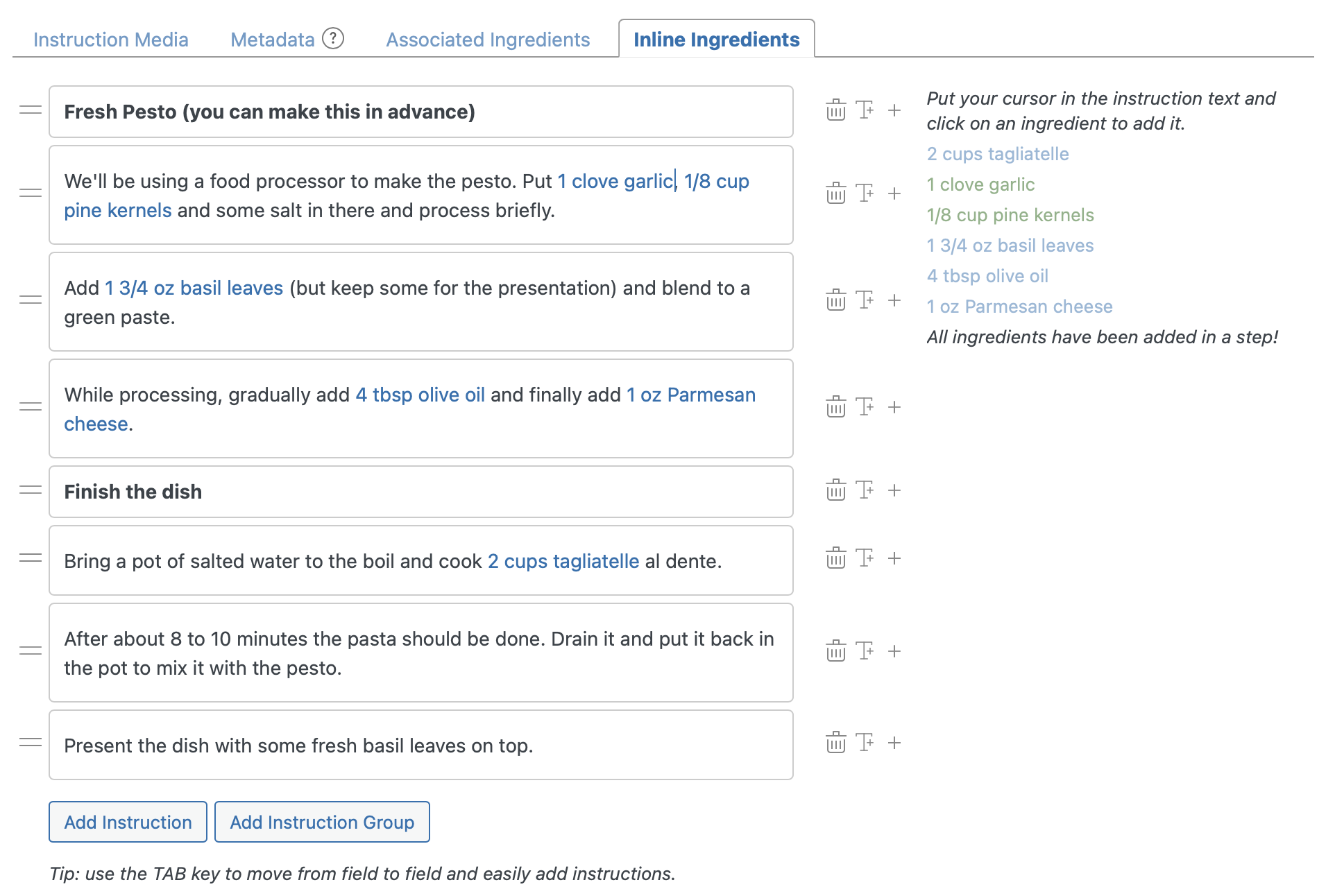
To put ingredients inside instruction steps, use the “Inline Ingredients” tab in the instructions section and simply click on the ingredient you want to add at the location of your cursor:
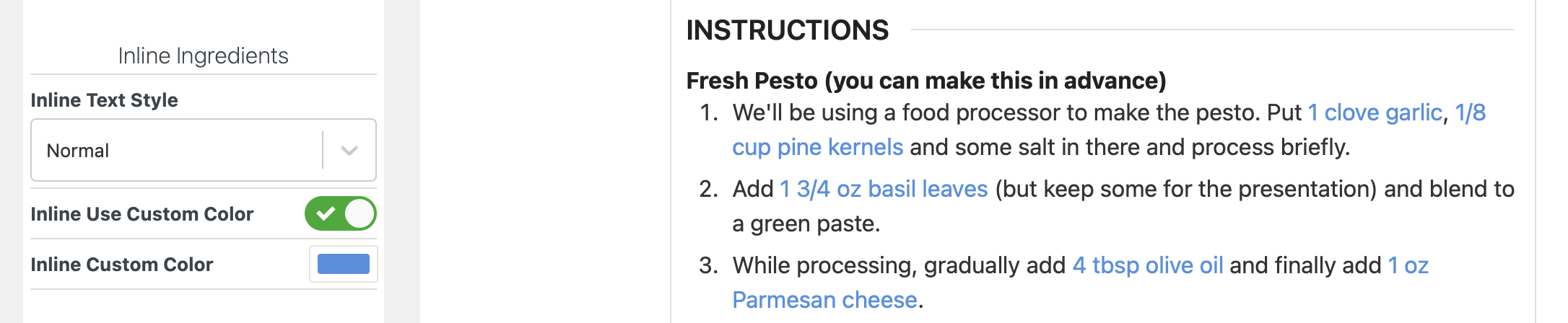
When editing the “Recipe Instructions” block in the Template Editor, you will have a few different styling options to set for these inline ingredients as well:
Alternatively, you can use associate ingredients with instruction steps, without having them inline.
Splitting Ingredients to Use in Different Instruction Steps
Section titled “Splitting Ingredients to Use in Different Instruction Steps”You can split an ingredient into multiple parts, each usable separately in instruction steps as inline or associated ingredients. This is useful when the same ingredient is used in different amounts across steps. Click on the “Split Ingredient” icon when editing your ingredients to start:
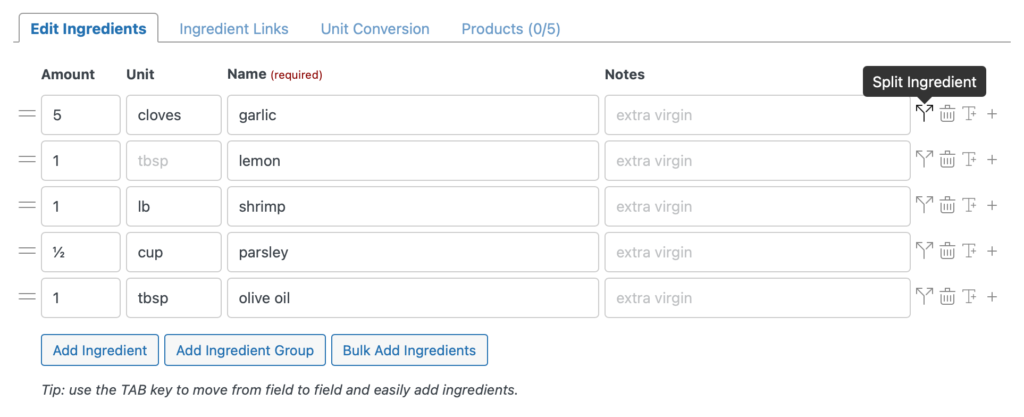
This will open a new modal were you can split the ingredient amount into multiple parts. For every part you pick a percentage, that way adjusting the amount of your ingredient afterwards makes sure the split is still correct. The preview can be used to check if you’ve set the correct percentage.
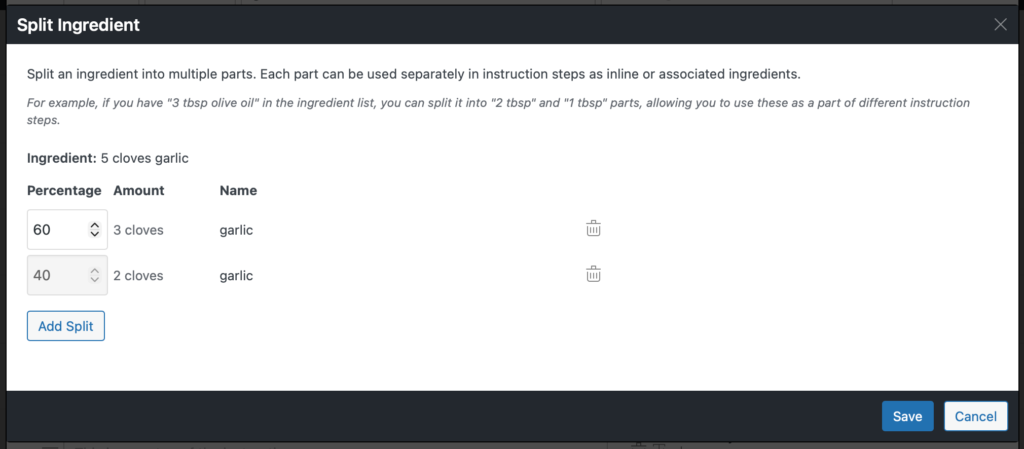
After saving the split we are now able to use those amounts as inline or associated ingredients in different instruction steps.