Instruction Tips
When editing a recipe you can use the “Add Tip” button at the bottom to but a tip to your instruction steps and drag it into place.
When on the “Instruction Media” tab, you can also use the “Change Tip Style” icon to further customize the way that tip looks:

In the modal that pops up you can change the icon, color and tip style, or just have it use the default as set for the recipe template.
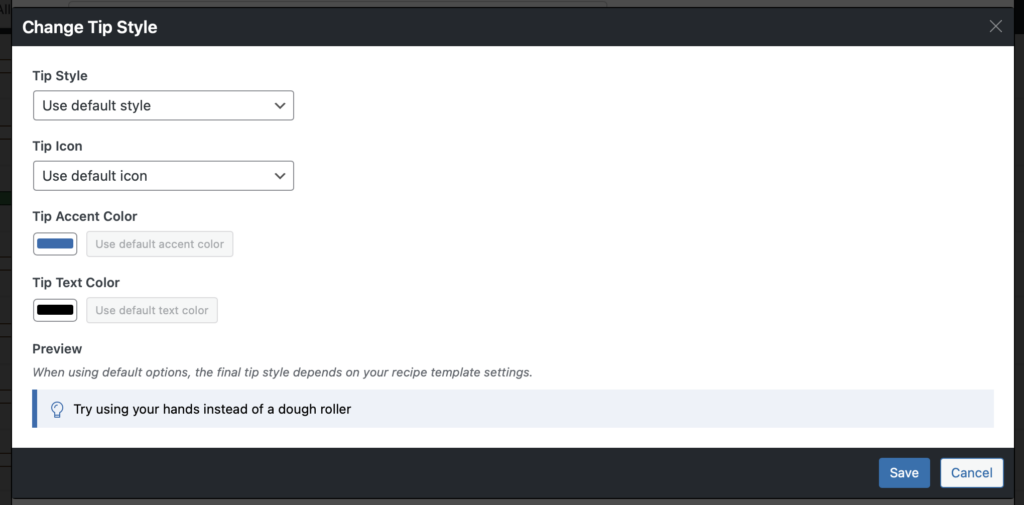
When using the default options, the way the tip looks will depend on how you have the recipe card set up in our Template Editor.
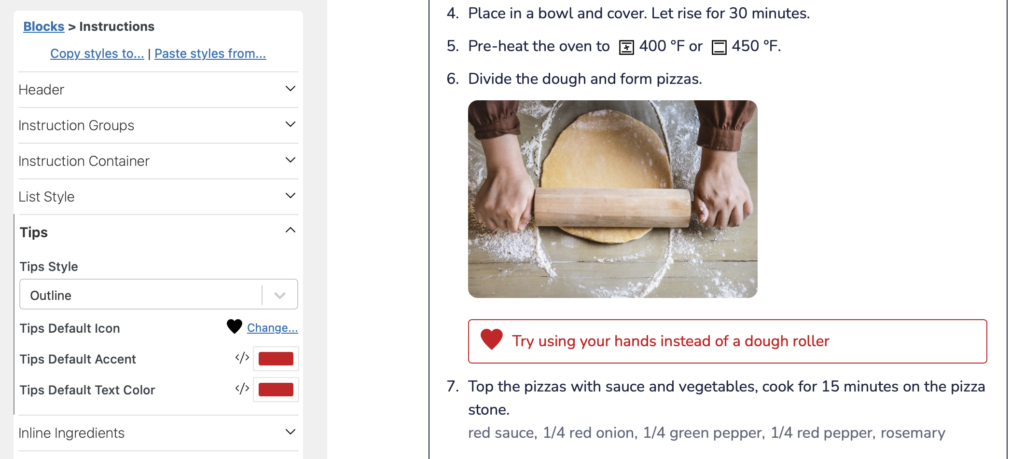
If you’re editing a recipe card template, you can change those defaults by editing the “Recipe Instructions” block:
Using the Tips Shortcode
Section titled “Using the Tips Shortcode”The tips feature is also available anywhere else on the page by using the [wprm-tip]This is my tip[/wprm-tip] shortcode. The following attributes can be used:
-
text=“My tip”
— as an alternative to surrounding the text
-
style=“outline”
— use a specific style, instead of the default
- left-border-straight, left-border-rounded, filled, outline, banner
-
icon=“oven”
— use a specific icon, instead of the default
- same icons as available in the template editor, none, or a custom image URL
-
accent=“#ffffff”
— use a specific accent color, instead of the default
-
text_color=“#ffffff”
— use a specific text color, instead of the default
-
class=“my-tip”
— optional custom class to add to the output
So for example, this shortcode could be added anywhere on the page:
[wprm-tip style="filled" icon="__none__" accent="#2b6cb0" class="my-recipe-tip"]Preheat the oven before you start mixing.[/wprm-tip]
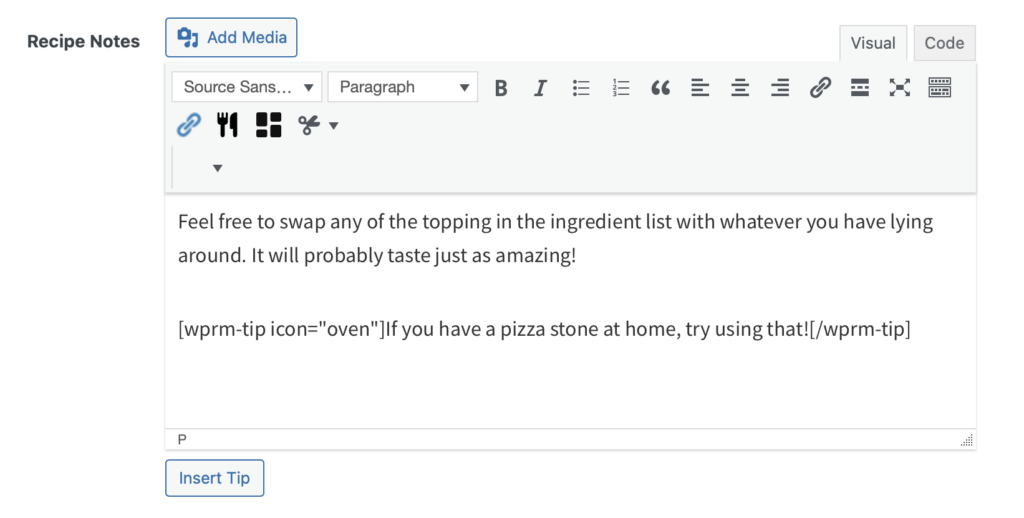
For recipe notes specifically, there’s also an “Insert Tip” button available, to easily add this shortcode through a visual editor: